SteamCore 1.3.1
· One min read
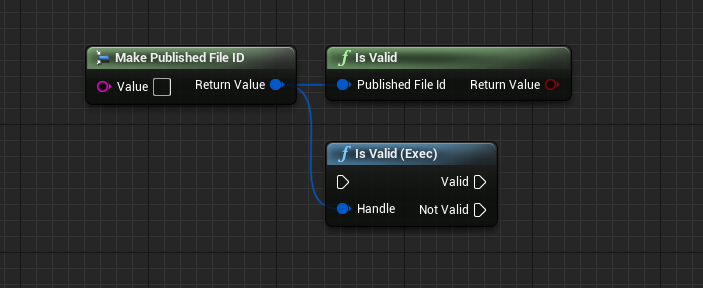
- Added utility function to check if PublishedFileId is valid
- Renamed ESubsystem to ESteamSubsystem due to a naming conflict
all
View All Tags
Go to https://console.aws.amazon.com/iam/ and login to your Amazon Account and access the IAM Console
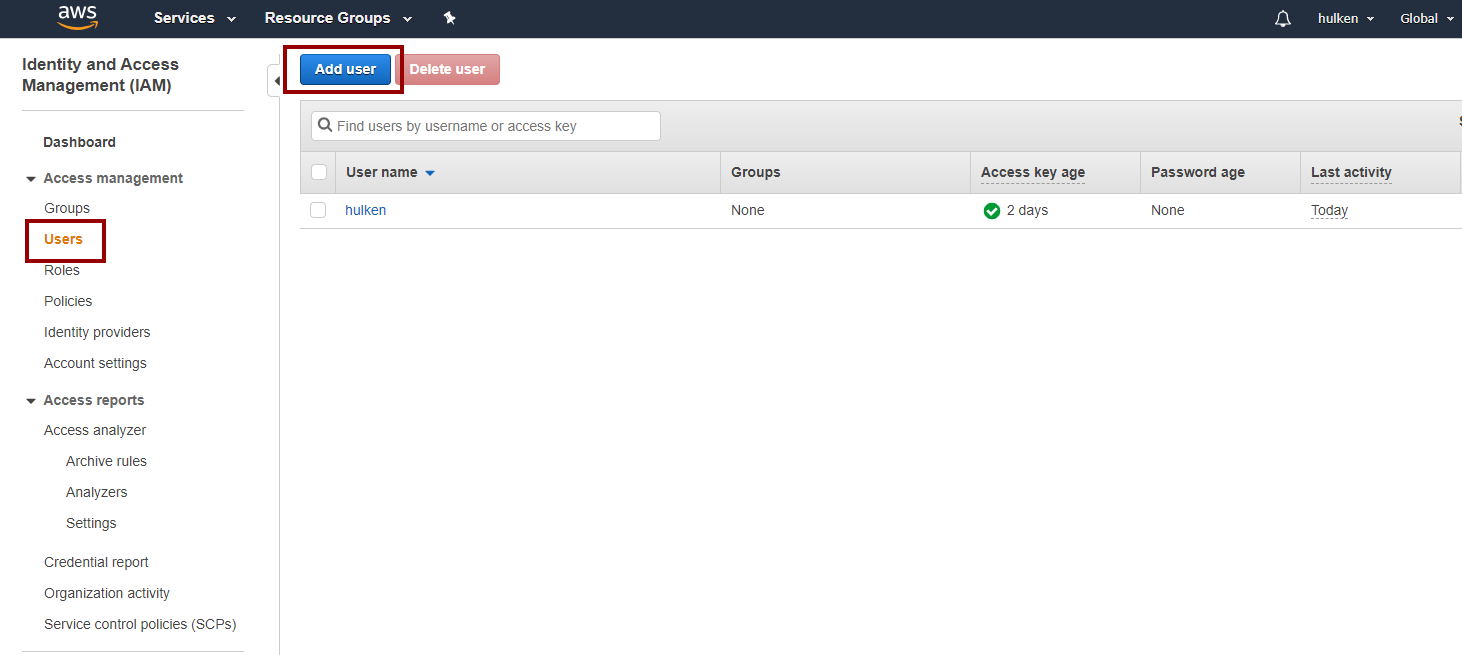
Click on “Users†and then “Add User“
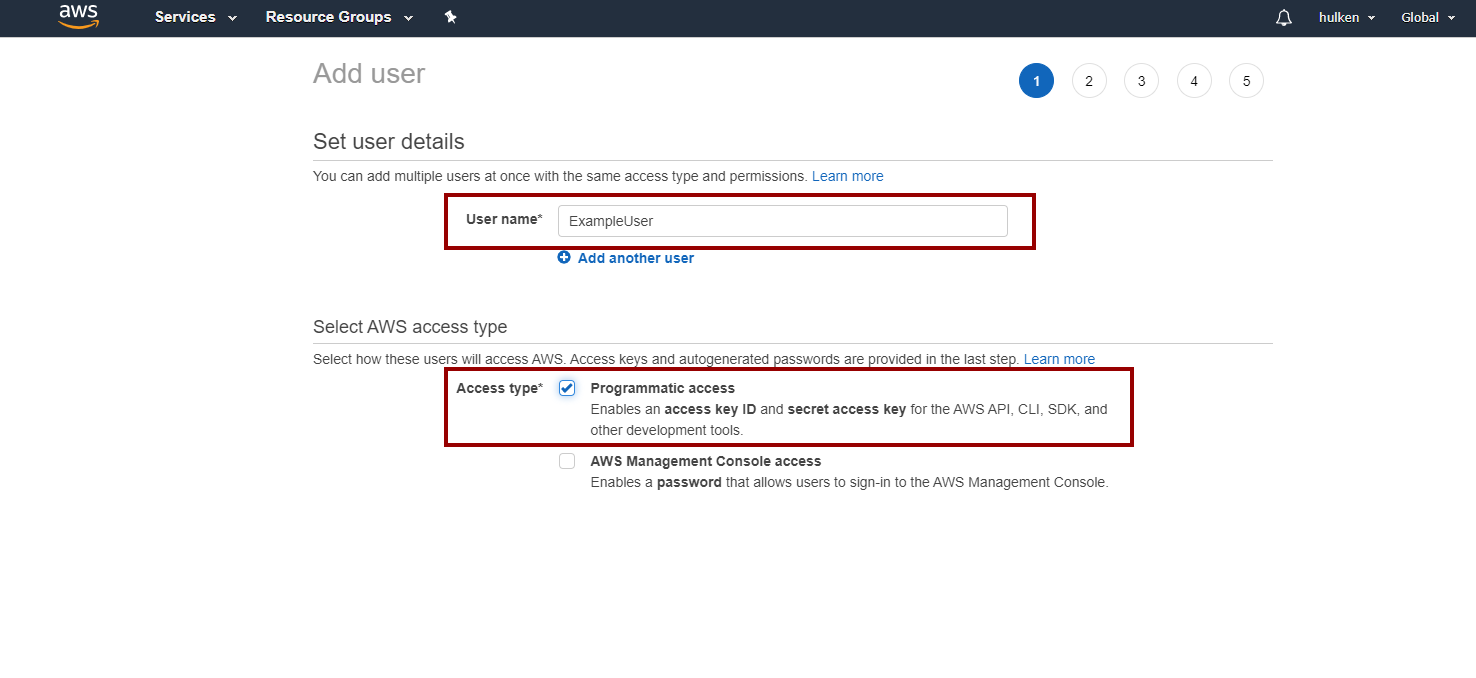
Name your user user and check “Programmatic Access“
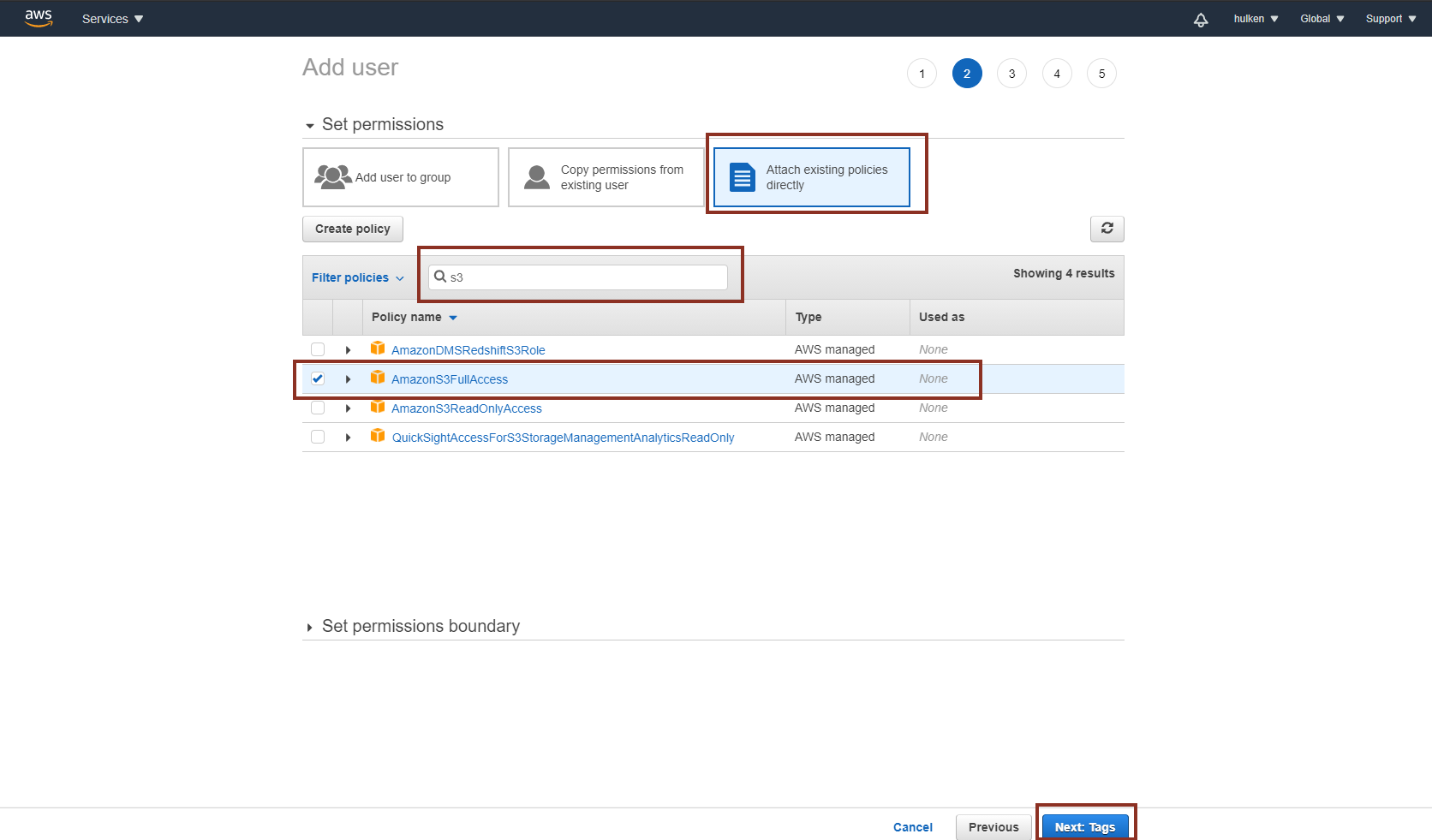
On the next screen click on “Attach existing policies directly†and search for S3, select "AmazonS3FullAccess".
You can skip the “Tags†page
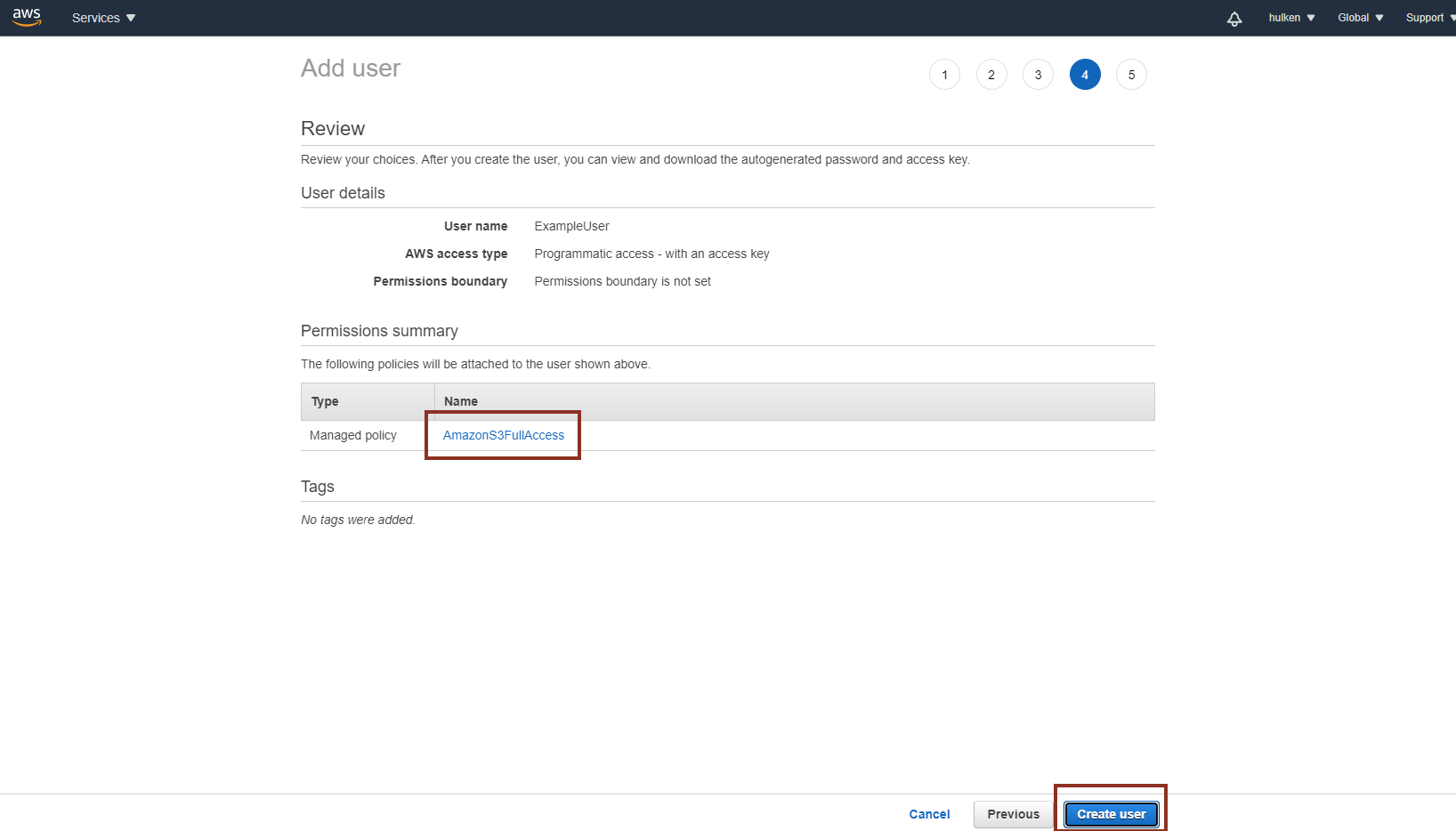
Verify your settings and click on “Create User“
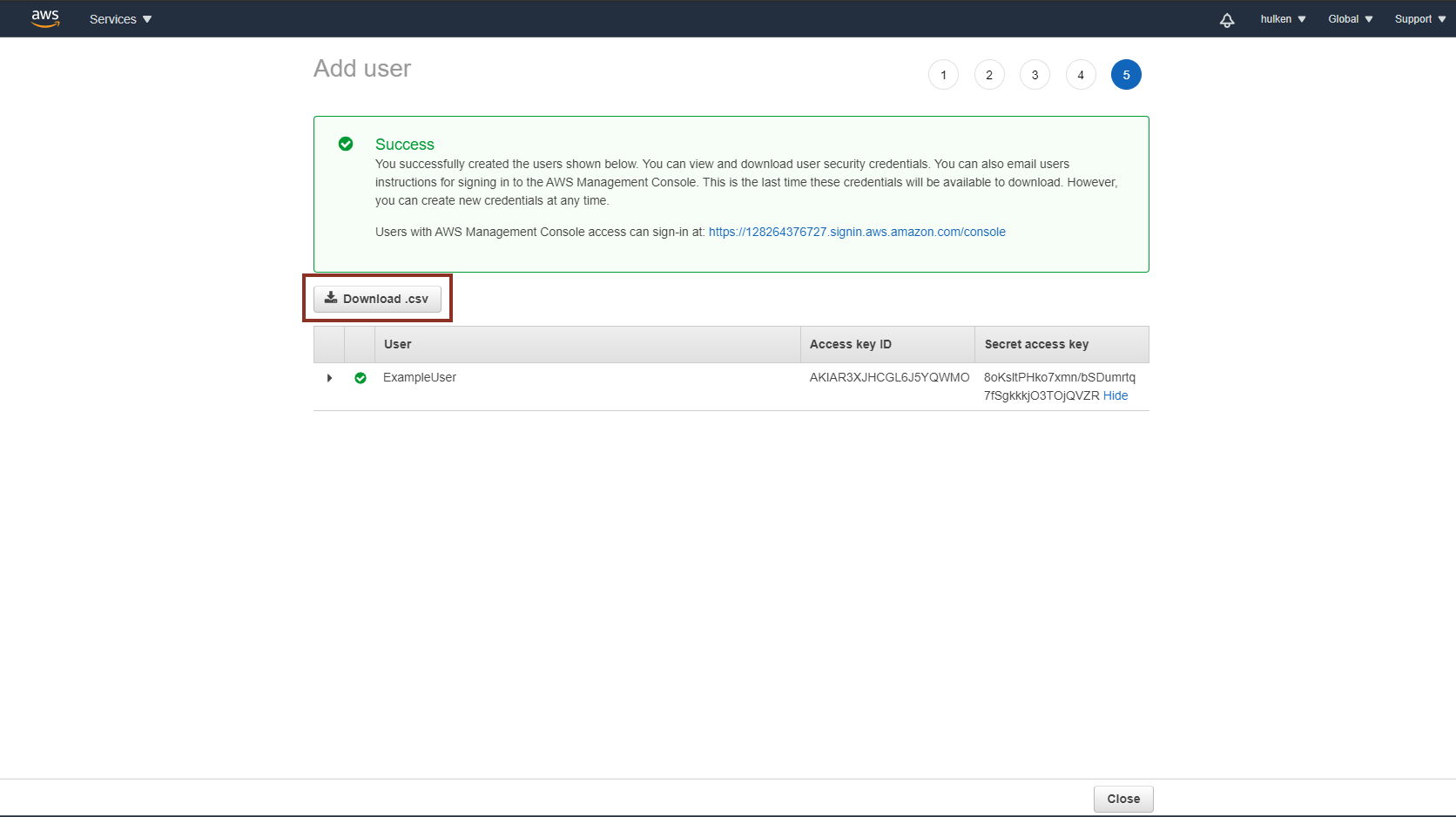
These are the security keys that you will have to enter in Unreal Engine to access S3 functionality!
Go to https://console.aws.amazon.com/iam/ and login to your Amazon Account and access the IAM Console
Click on “Users†and then “Add User“
Name your user user and check “Programmatic Access“
On the next screen click on “Attach existing policies directly†and search for DynamoDBFullAccess
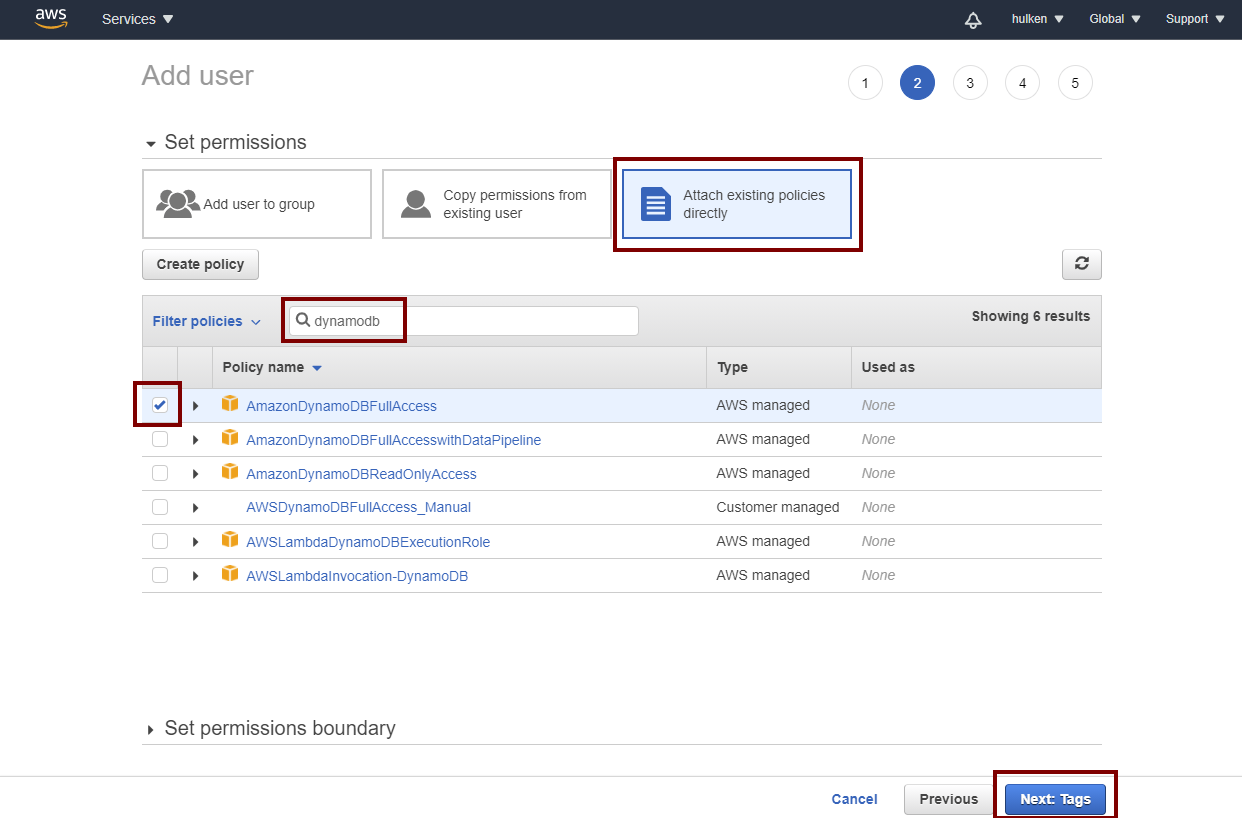
You can skip the “Tags†page
Verify your settings and click on “Create User“

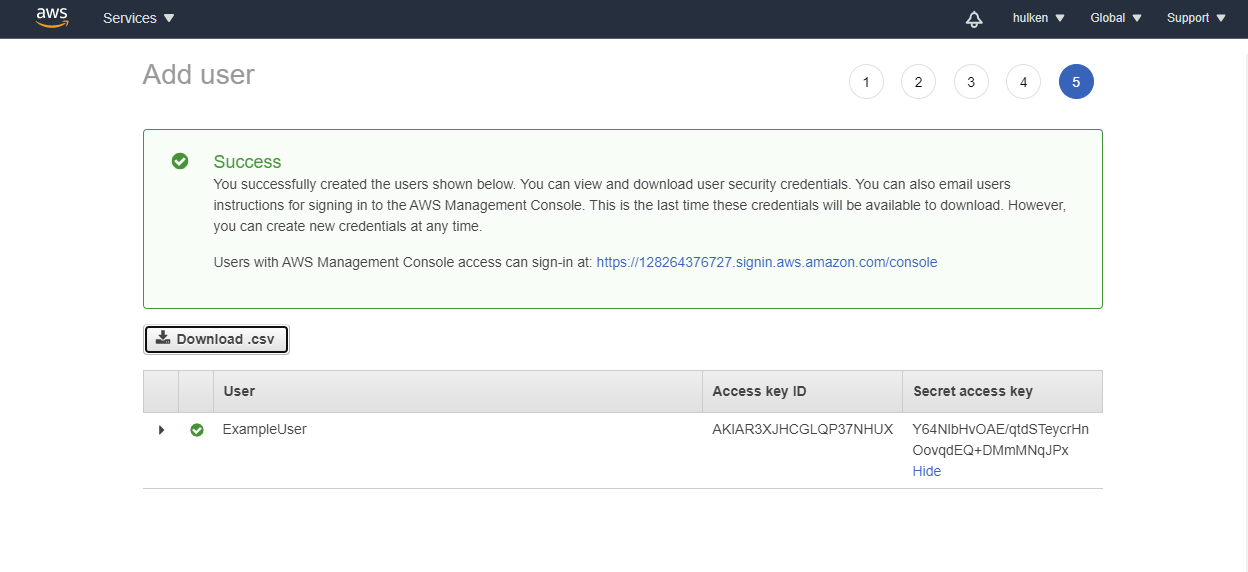
These are the security keys that you will have to enter in Unreal Engine to access DynamoDB functionality!
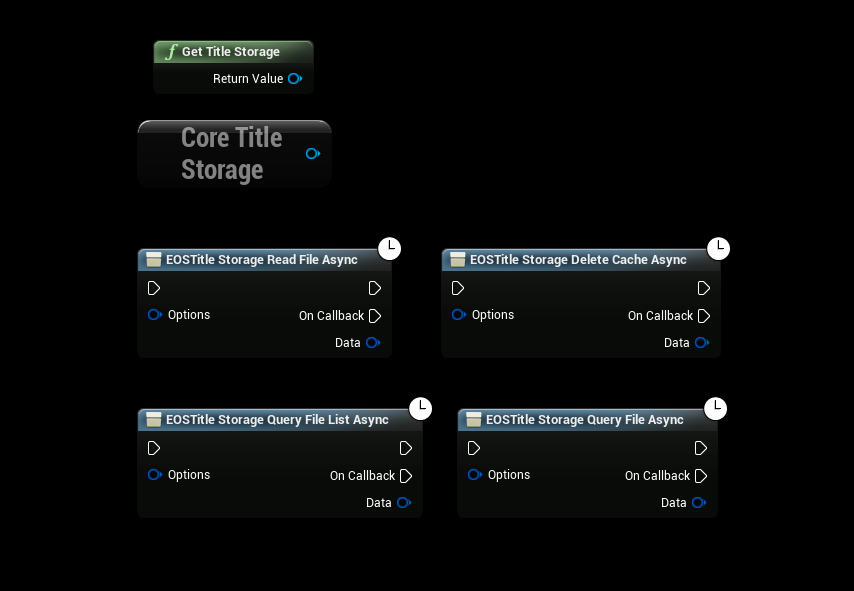
The Title Storage Interface enables developers using Epic Online Services (EOS) to retrieve encrypted data from cloud servers. Data that you store through this interface is accessible to any user on any device where they can log in. While similar to the Player Data Storage Interface, this interface is specialized to handle game-specific data rather than user-specific data, and can provide different versions of files based on the user's platform, region, or other conditions.
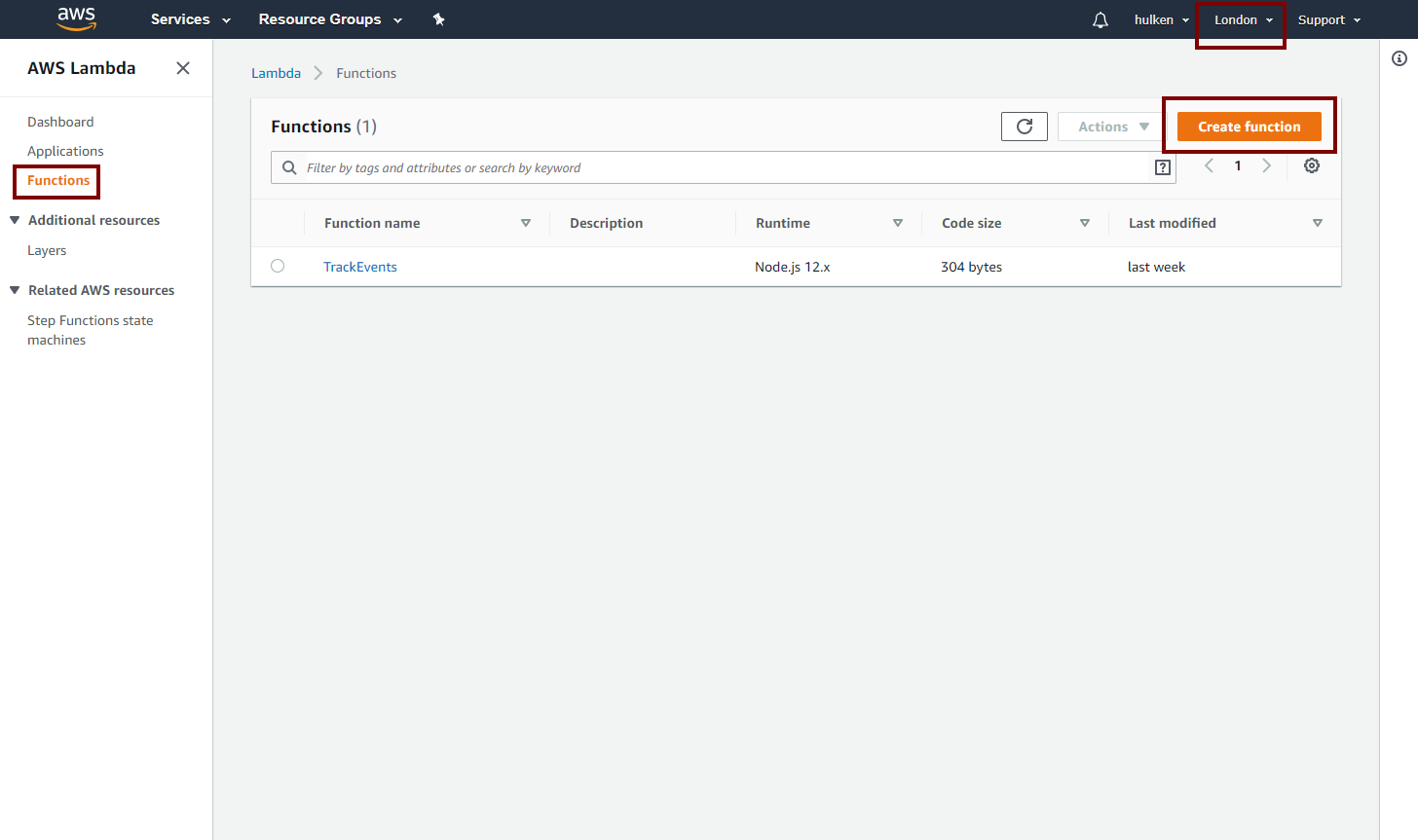
Click on "Create Function", make sure you're in your region
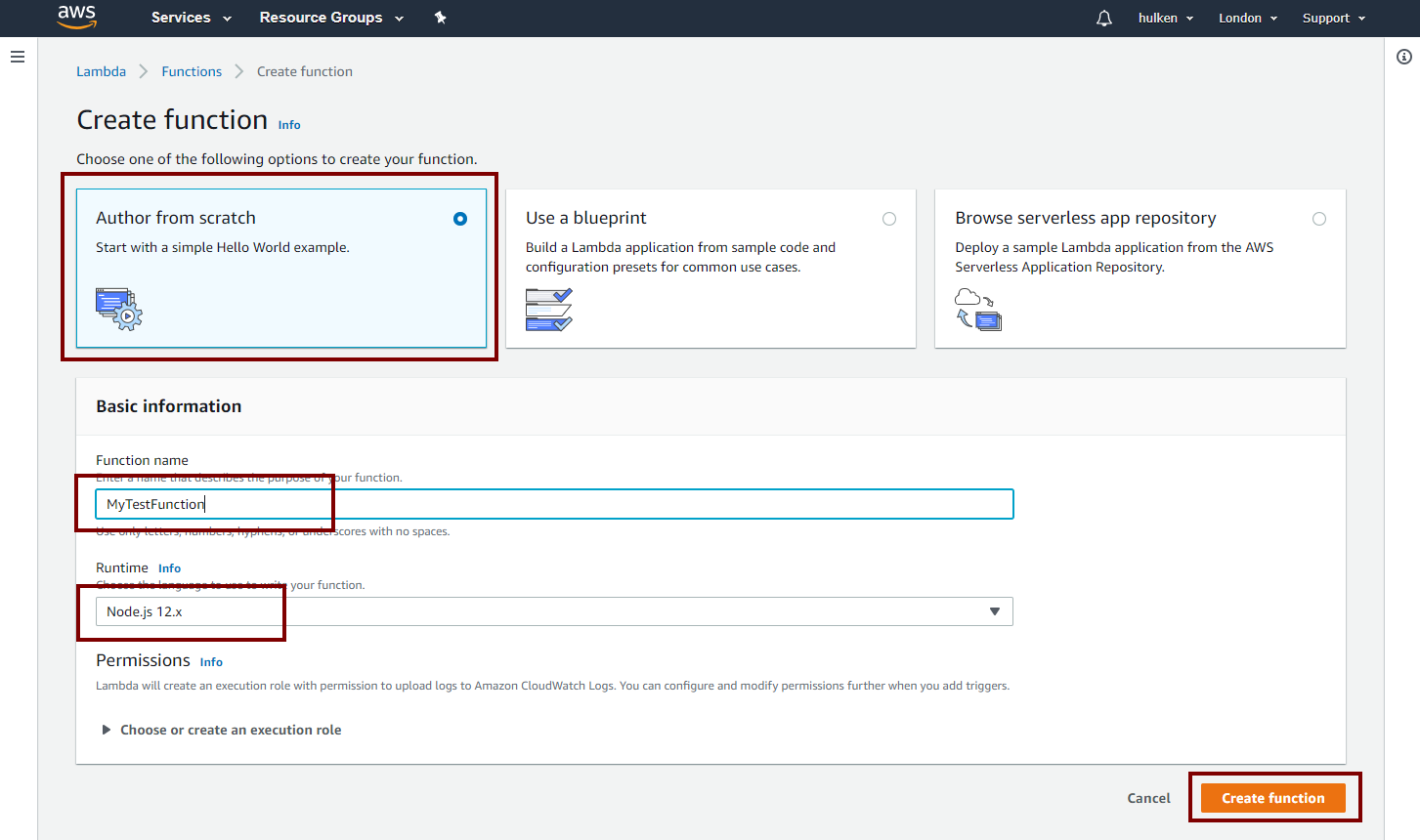
Name your function and select Node Js as the type, click on "Create Function"
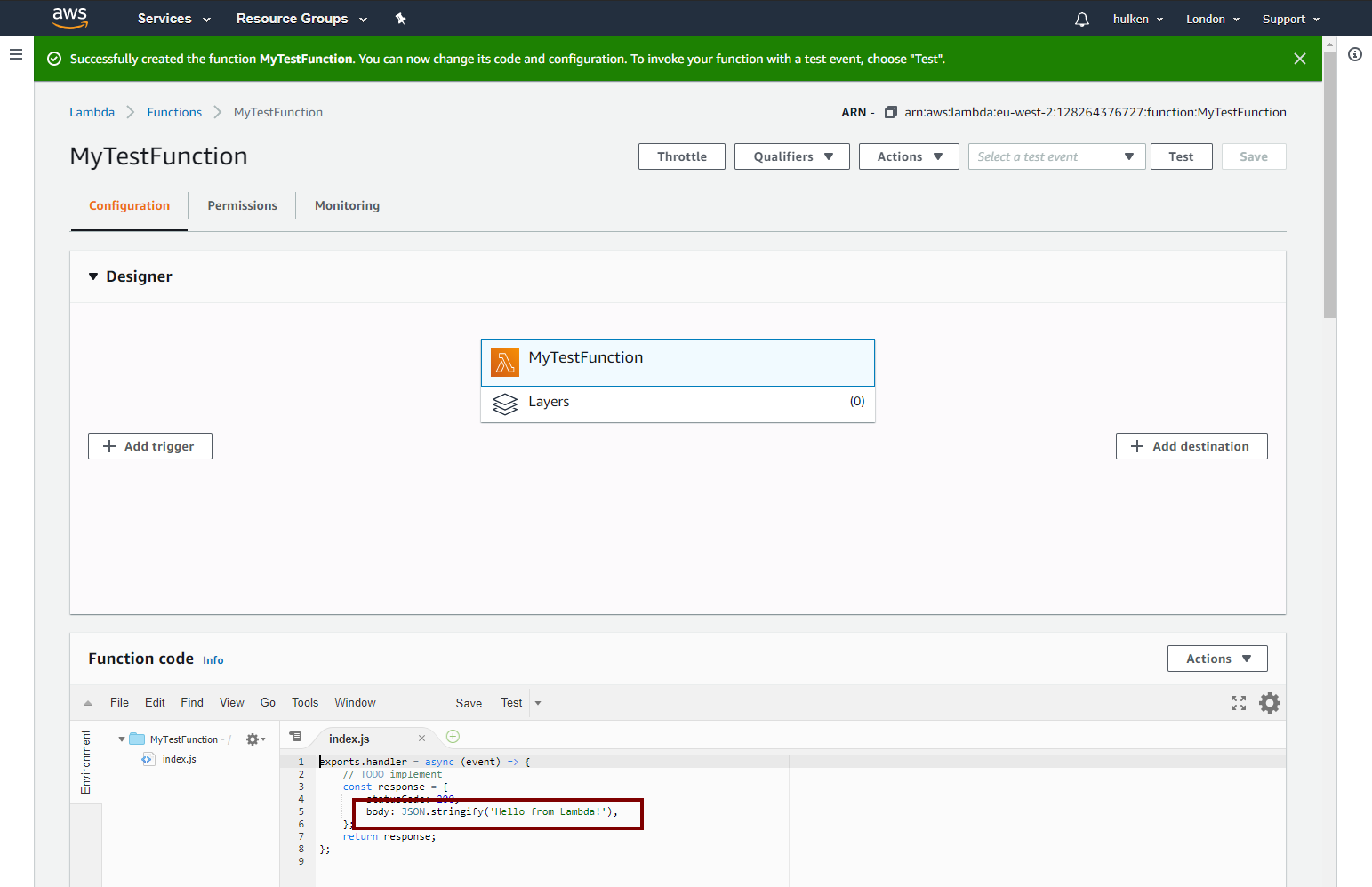
We've successfully created our Test function! We can now call this function inside Unreal Engine 4!
Go to https://console.aws.amazon.com/iam/ and login to your Amazon Account and access the IAM Console
Click on "Users" and then "Add User"
Name your user user and check "Programmatic Access"
On the next screen click on "Attach existing policies directly" and search for AwsLambdaFullAccess

You can skip the "Tags" page
Verify your settings and click on "Create User"


These are the security keys that you will have to enter in Unreal Engine to access Lambda functionality!
