689 posts tagged with "unreal engine"

unreal engine

View All Tags

Integrating Simple Build System with Multiplayer Survival Game Template #2

· 2 min read
Developer

You can find the post here:

http://eeldev.com/index.php/edit-blueprint-ustructs-unreal-engine/

Have you read the post? Good, then you can proceed!

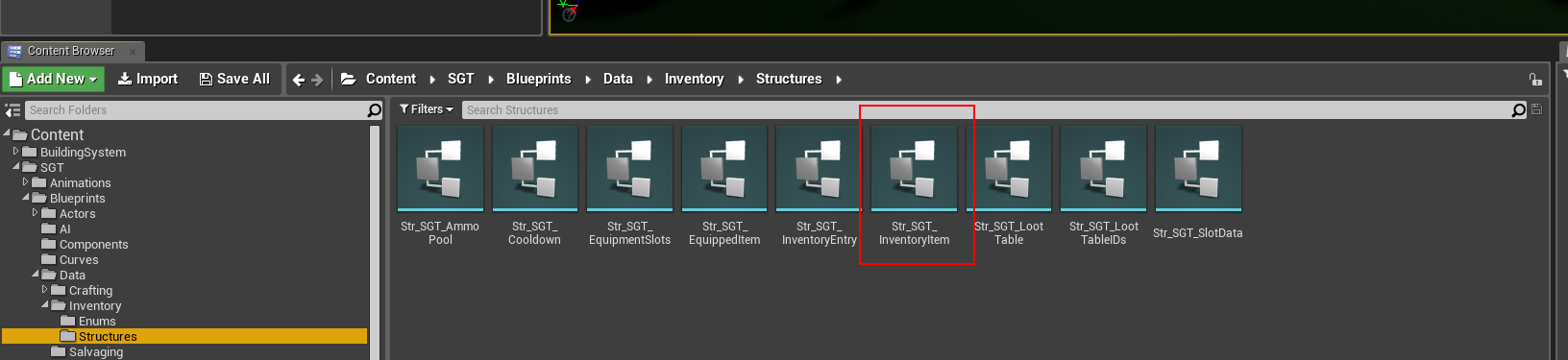
  • Open the Str_SGT_InventoryItem Struct

Wait.. did you really read my post? Ok, just making sure!

http://eeldev.com/index.php/edit-blueprint-ustructs-unreal-engine/

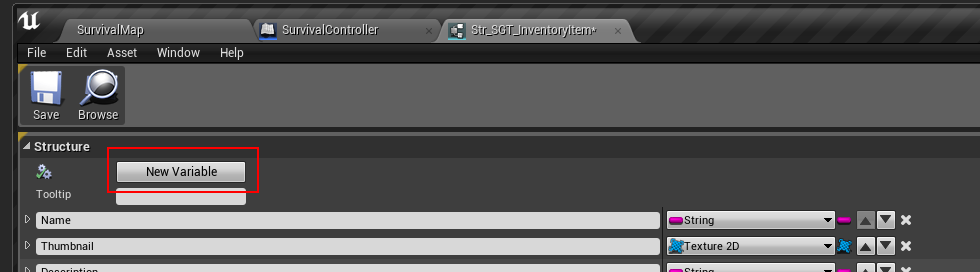
  • Add a new Variable

  • Make the new variable a E_ResourceType Enum
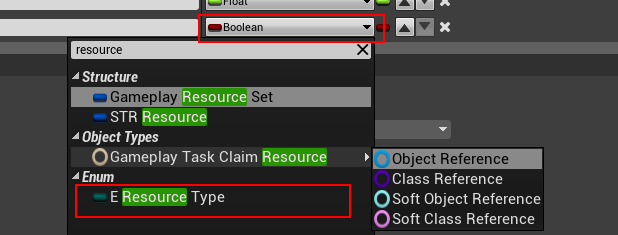
  • It should look like this when done:

  • Save the struct & Restart the editor (DO NOT SAVE ANYTHING ELSE BESIDES THE STRUCT!!!!!!!!!!!!!!!!

  • After restarting, open the DT_SGT_Items Data Table
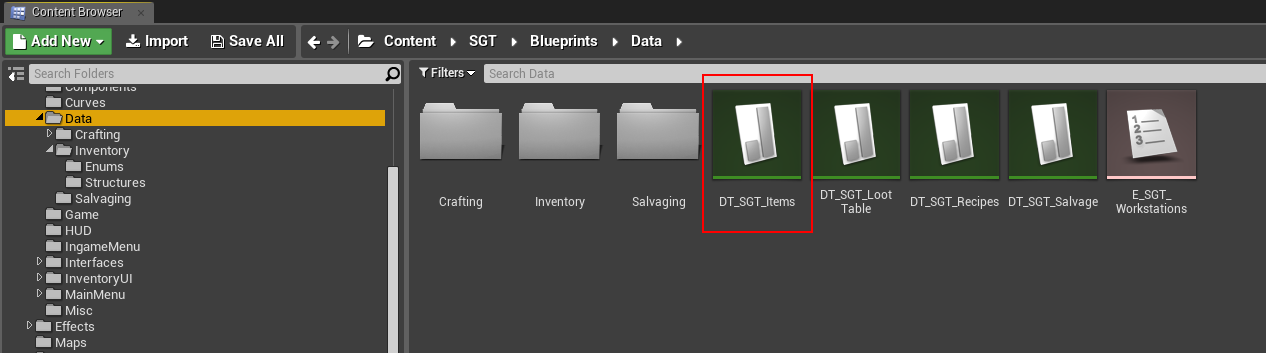
  • In this example, we're going to use the included Wood Plank item as our Wood resource item

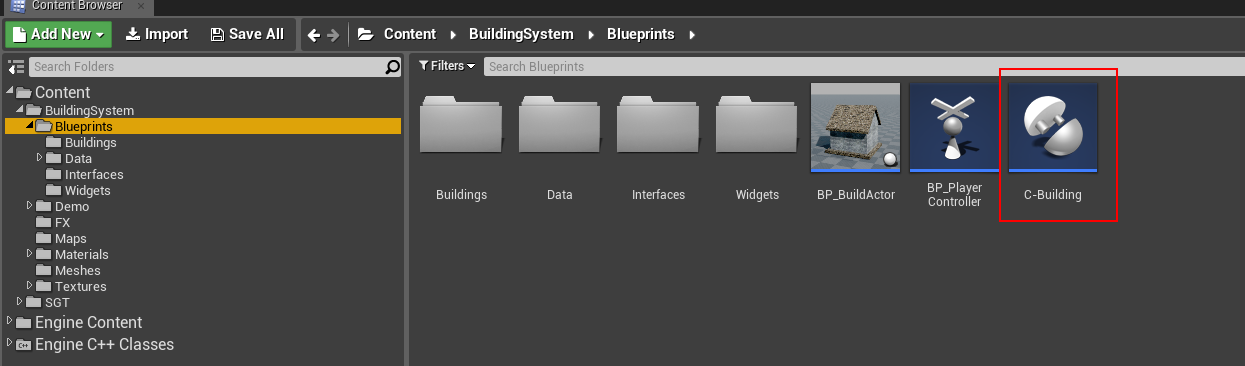
  • Next, open the C-Building Component

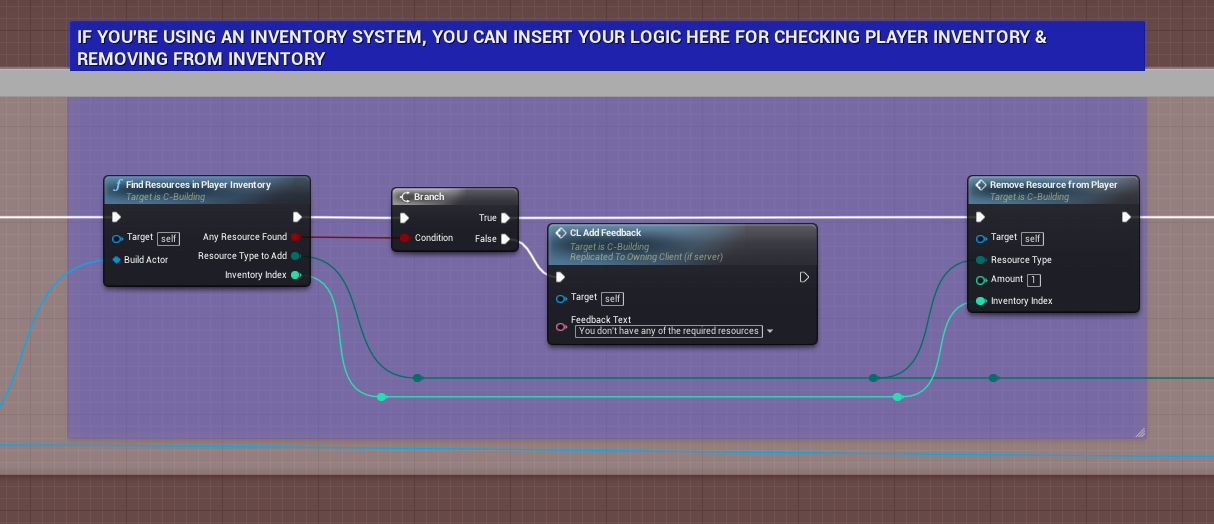
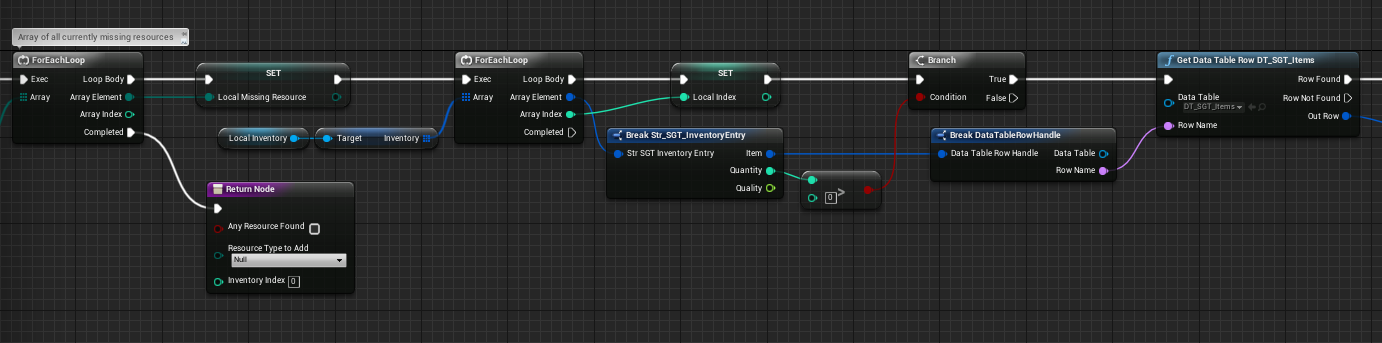
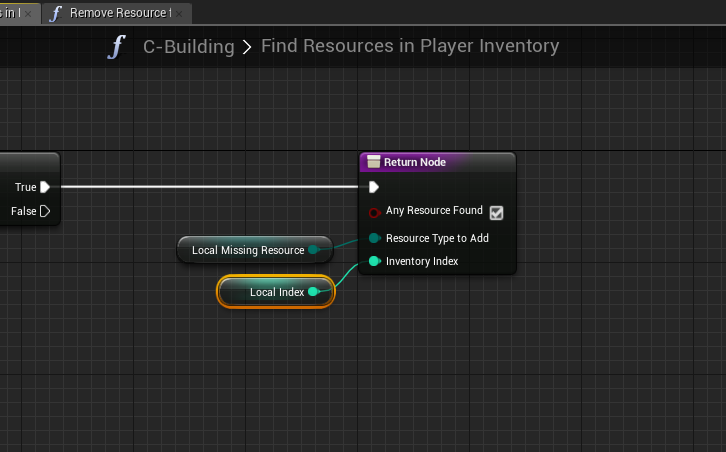
  • Modify the FindResourcesInPlayerInventory()

Add a new output parameter (InventoryIndex) (integer type) set default value to -1
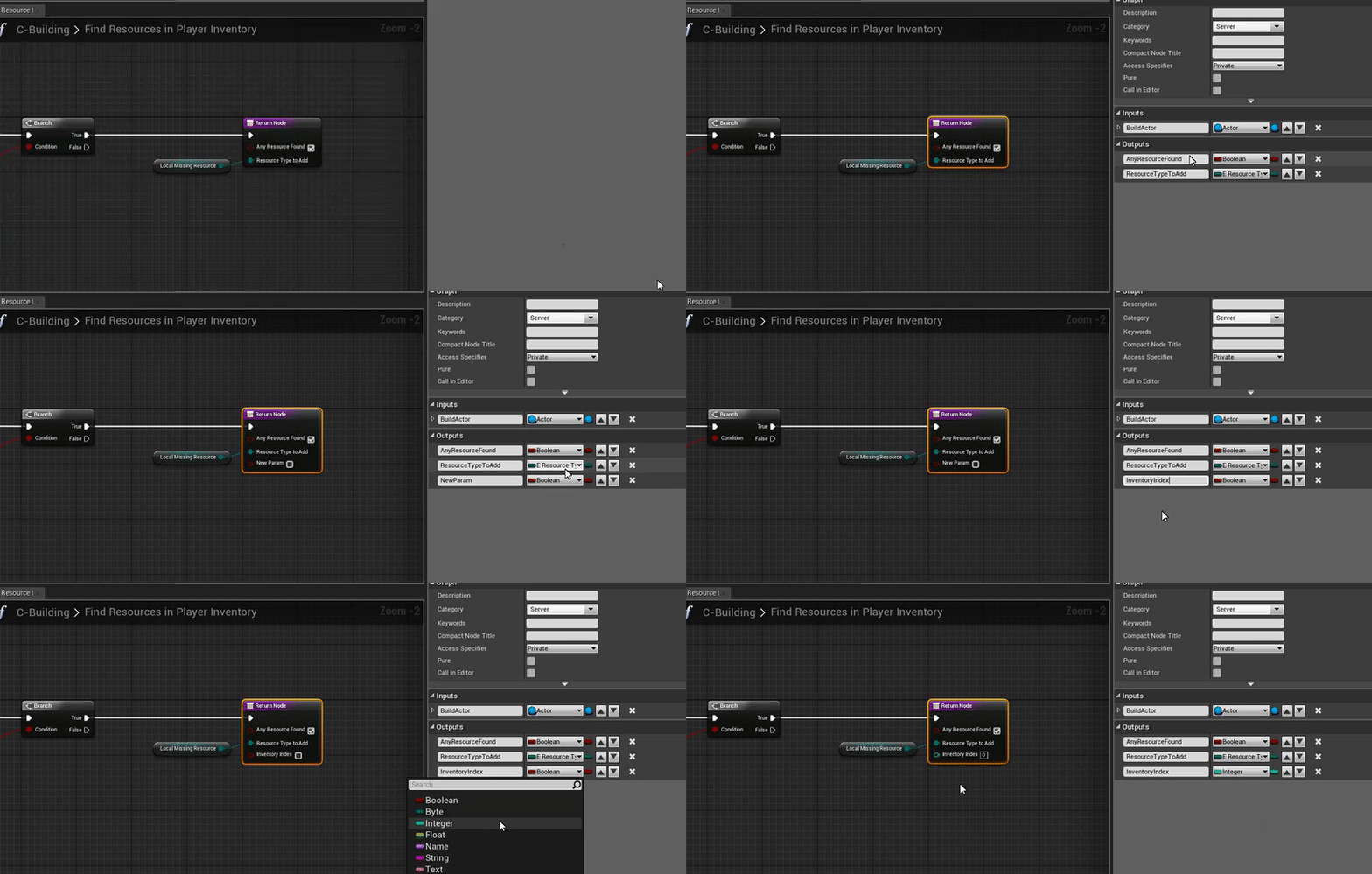
FindResourcesInPlayerInventory()

FindResourcesInPlayerInventory()
FindResourcesInPlayerInventory()
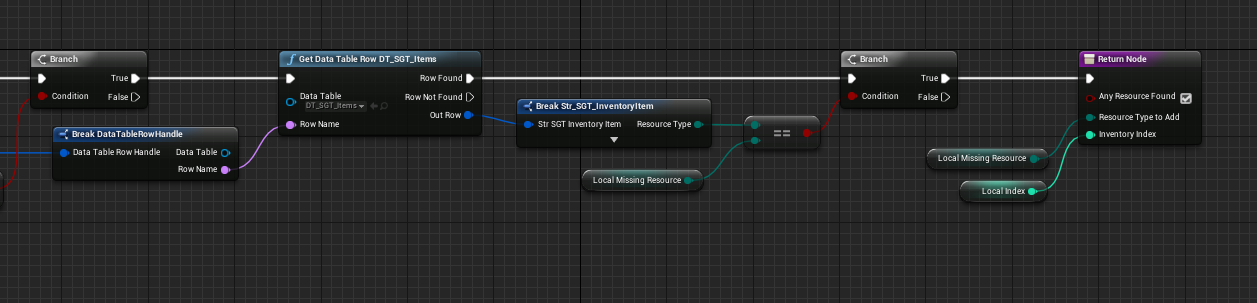
FindResourcesInPlayerInventory()
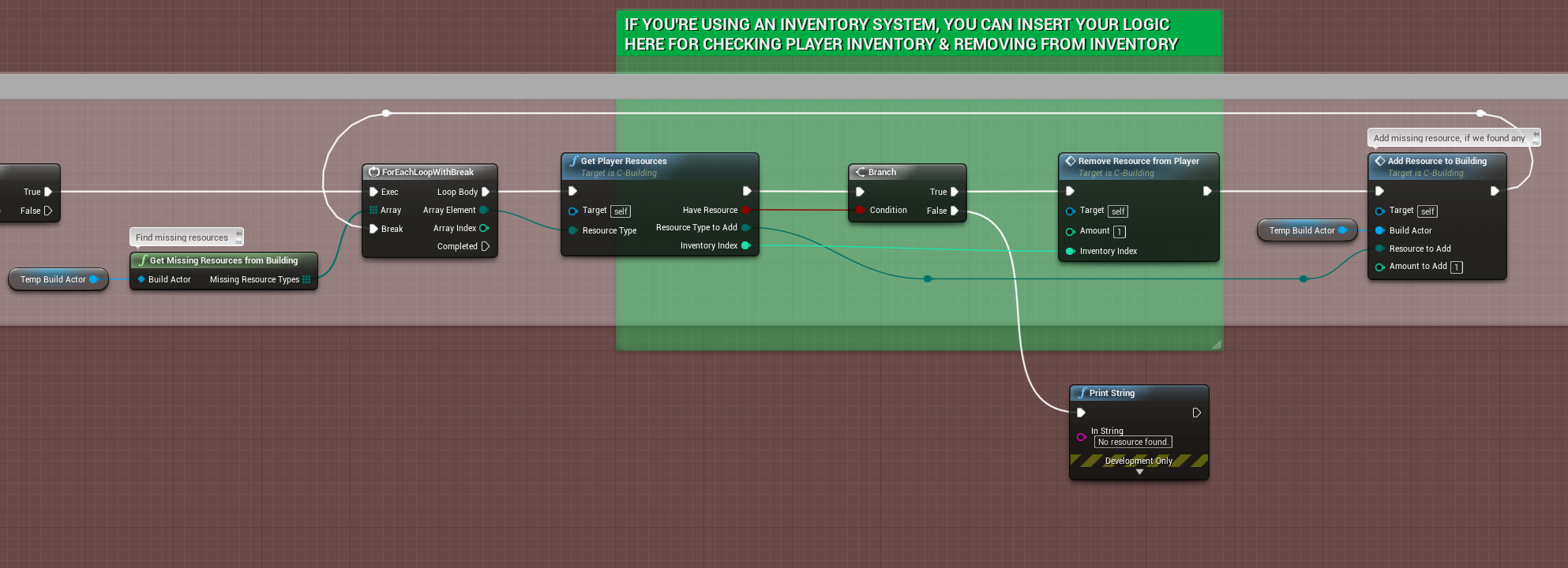
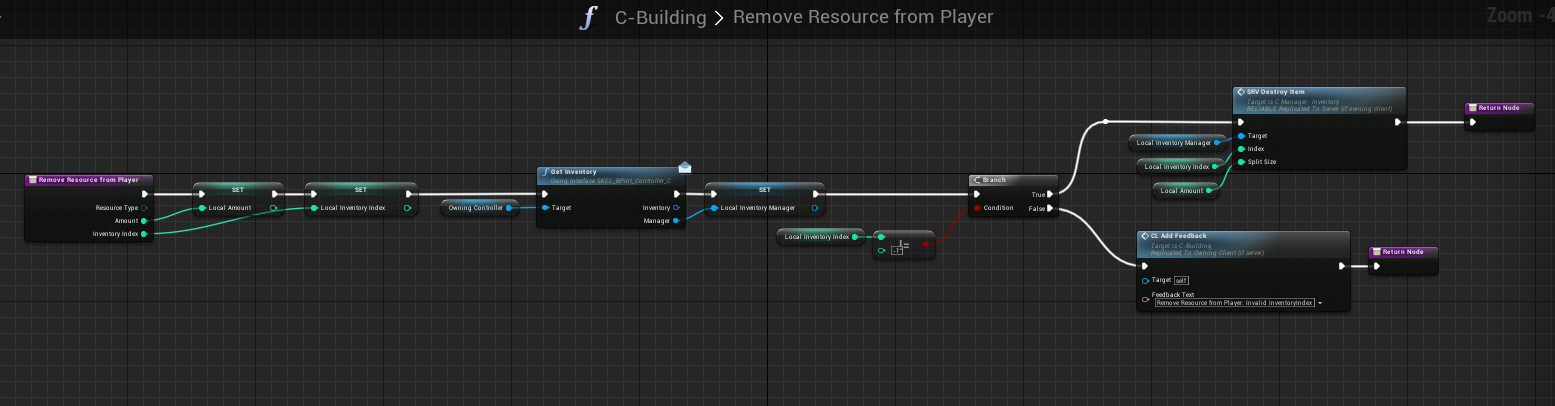
  •  Modify the RemoveResourceFromPlayer() function
  • That's all you have to do, in order to use Stone, just do the same procedure with adding new items to the Data Table (DT_SGT_Items)

How to edit Blueprint USTRUCTS() in Unreal Engine

· 2 min read
Developer
  • I take NO RESPONSIBILITY if You or Unreal Engine mess up when editing a Blueprint USTRUCT().
  • Make sure you BACKUP your project BEFORE doing ANY USTRUCT() work in Unreal Engine 4.

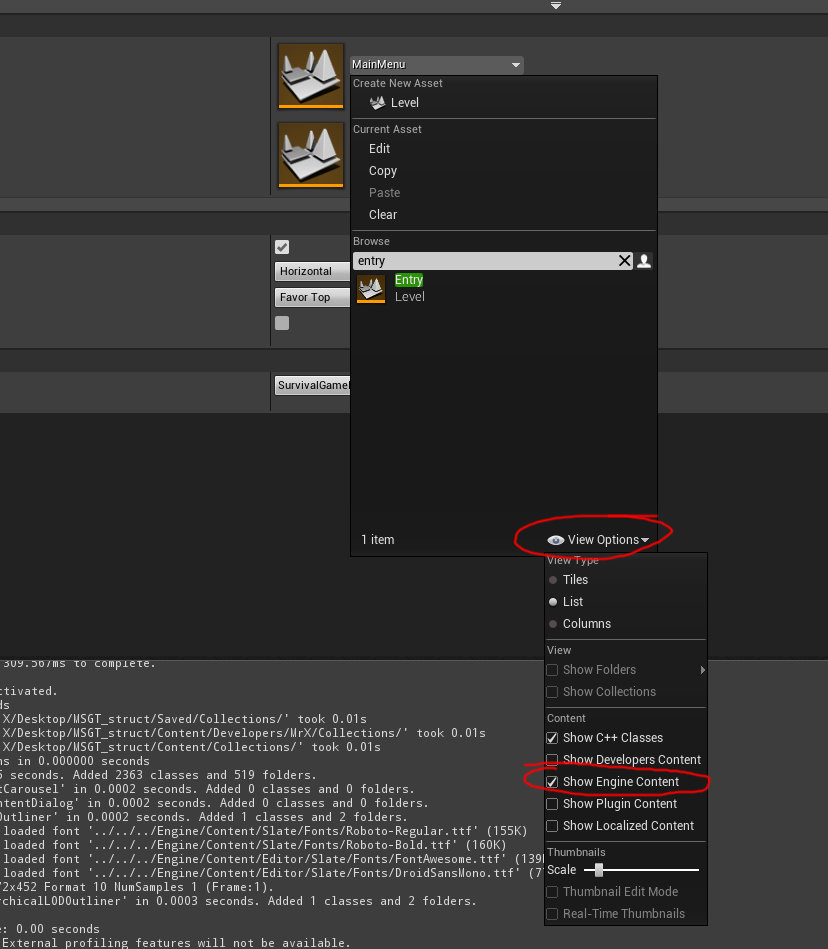
First of all, open your "Project Settings" and select the "Entry" map as the "Editor Startup Map", you need to click "View Options" at the bottom and select "Show Engine Content" for the Entry map to show up. This is so the engine loads up without any references to anything other than the engine core.

In your Editor Preferences, disable Auto Saving (at least when editing a Struct)

RESTART THE EDITOR AFTER YOU'VE SELECTED THE MAP & DISABLED AUTO SAVING

Add your new Struct Variable

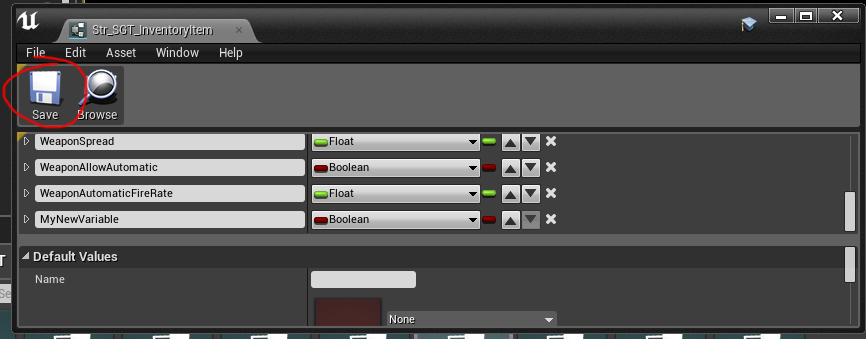
When you're done editing the struct, click "SAVE" inside the Struct editor, DO NOT CLICK SAVE ALL!!!!

THIS IS THE THE MOST CRUCIAL PART!!!

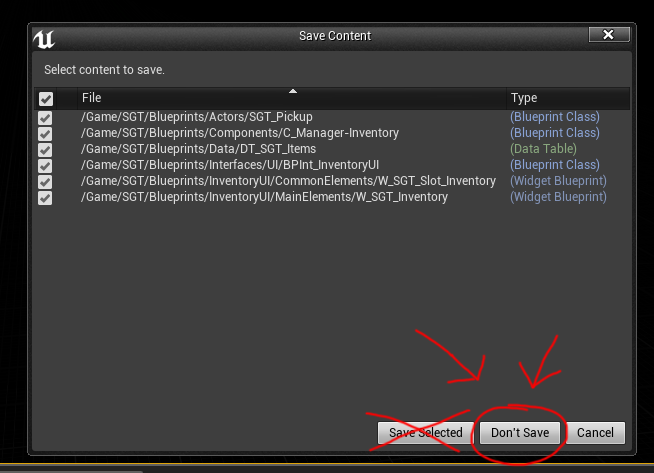
CLOSE THE EDITOR & DO NOT CLICK ON SAVE SELECTED!!!

Click on "Don't Save" and Restart your Editor!! Don't save or touch ANYTHING else.

Using this method, you'll keep all the Struct references intact and can edit Blueprint USTRUCTs however you like, without making a mess, IF you make a mess, you'll have to Replace ALL references to that Struct in every blueprint and every function that has a reference to it.

Happy USTRUCT editing ;)

Integrating Simple Build System with Multiplayer Survival Game Template

· 3 min read
Developer

Assets required for integration

Before you begin, please read the following!

  • START BY BACKING UP YOUR PROJECT BEFORE MIGRATING, I take NO responsibility if You or Unreal Engine mess up the Migration/Integration process.
  • The Multiplayer Survival Template doesn't have a default definition of Resources such as Wood or Stone, therefor, if you want to enable the feature of removing resources from the Player's inventory, you'll need to edit the Str_SGT_InventoryItem struct, I will cover this process in a separate tutorial, reason being, it can mess up A LOT of references to the struct & the DT_SGT_Items DataTable, making your entire project a nightmare to fix. DO NOT ATTEMPT THIS UNLESS YOU KNOW WHAT YOU'RE DOING
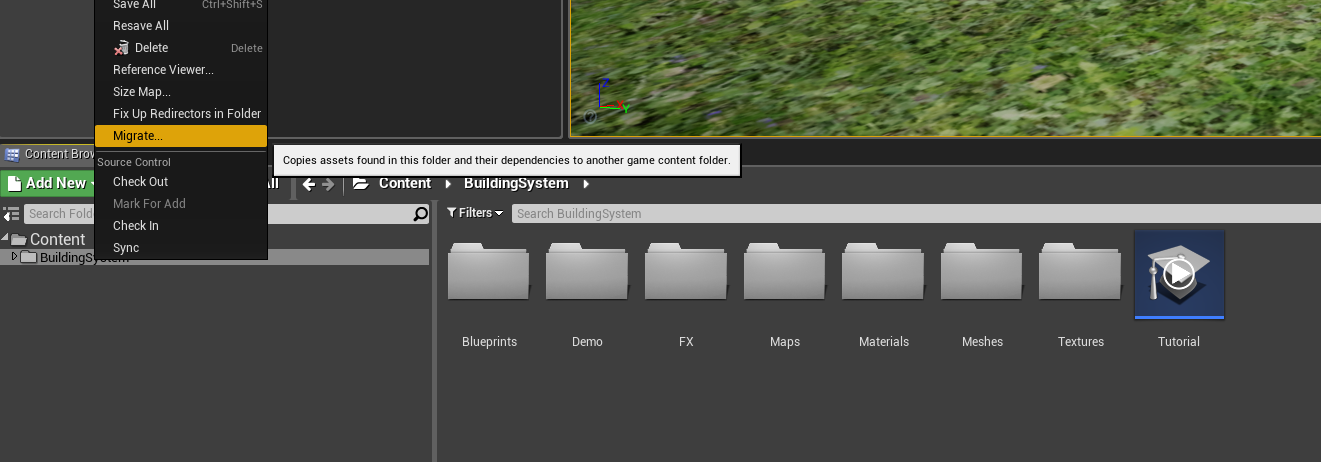
  • Begin by Migrating the Simple Building System to your MSGT Installation

  • Open up the SurvivalController Blueprint (/SGT/Blueprints/Game/SurvivalController)

  • Add the C-Building Component to the SurvivalController Blueprint

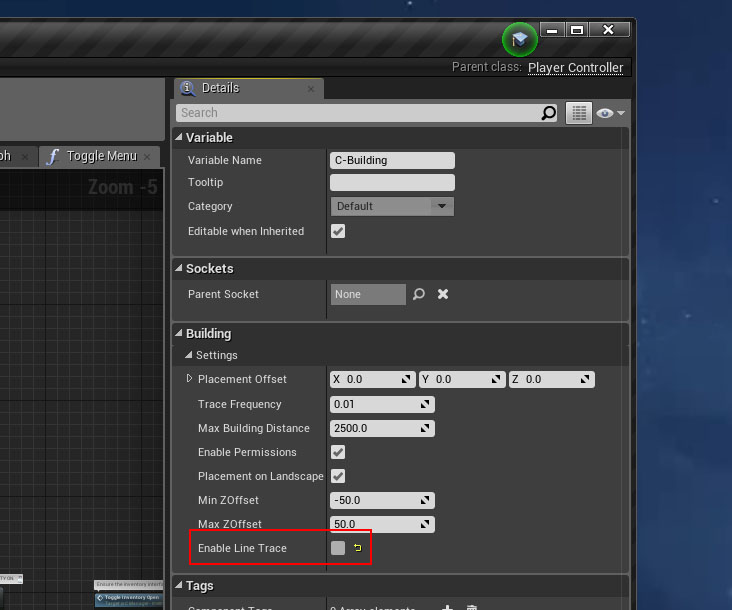
  • Select the C-Building component in the SurvivalController Blueprint (where you just added the Component), on the right hand side, in the Details panel, UNCHECK/Disable the "Enable Line Trace"

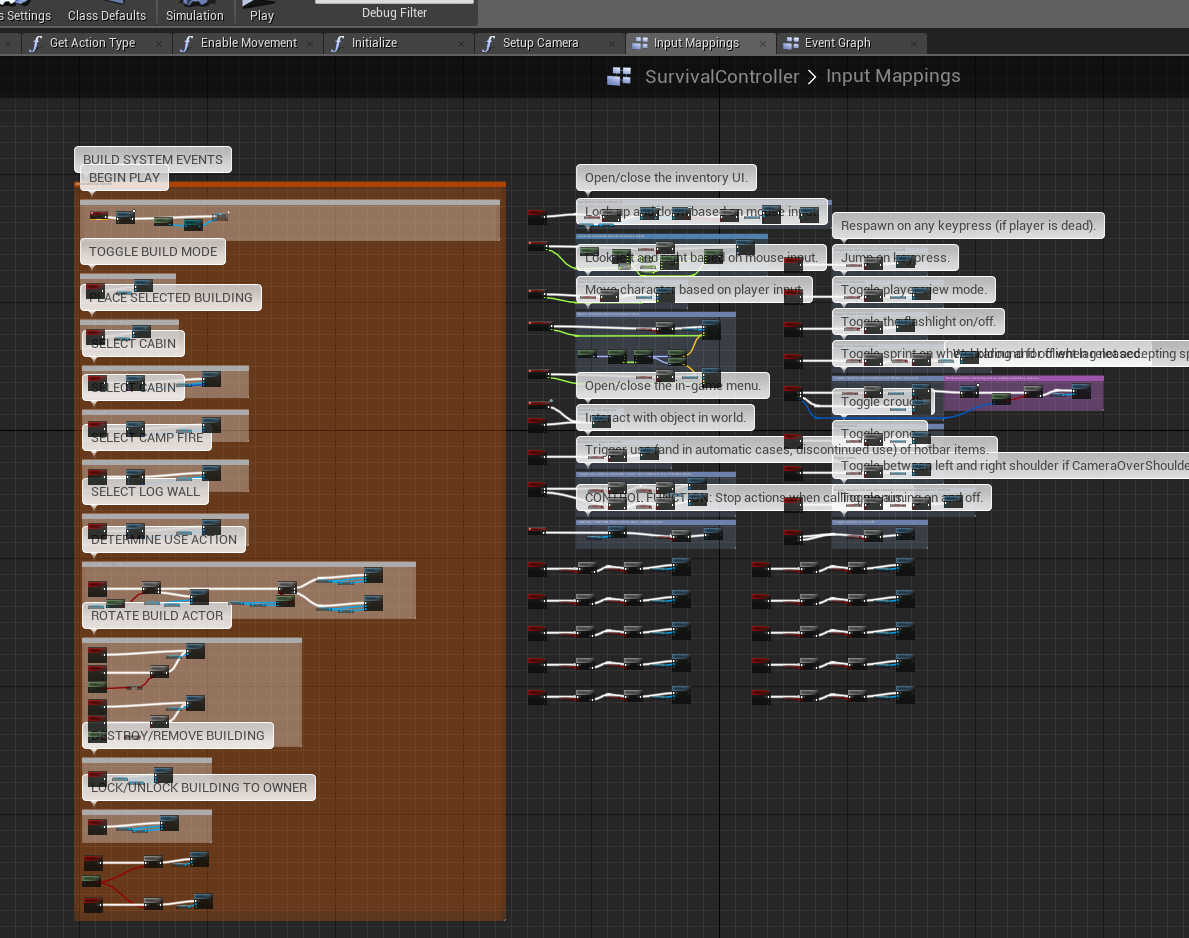
  • Copy the Events from (/BuildingSystem/Blueprints/BP_PlayerController) to your SurvivalController

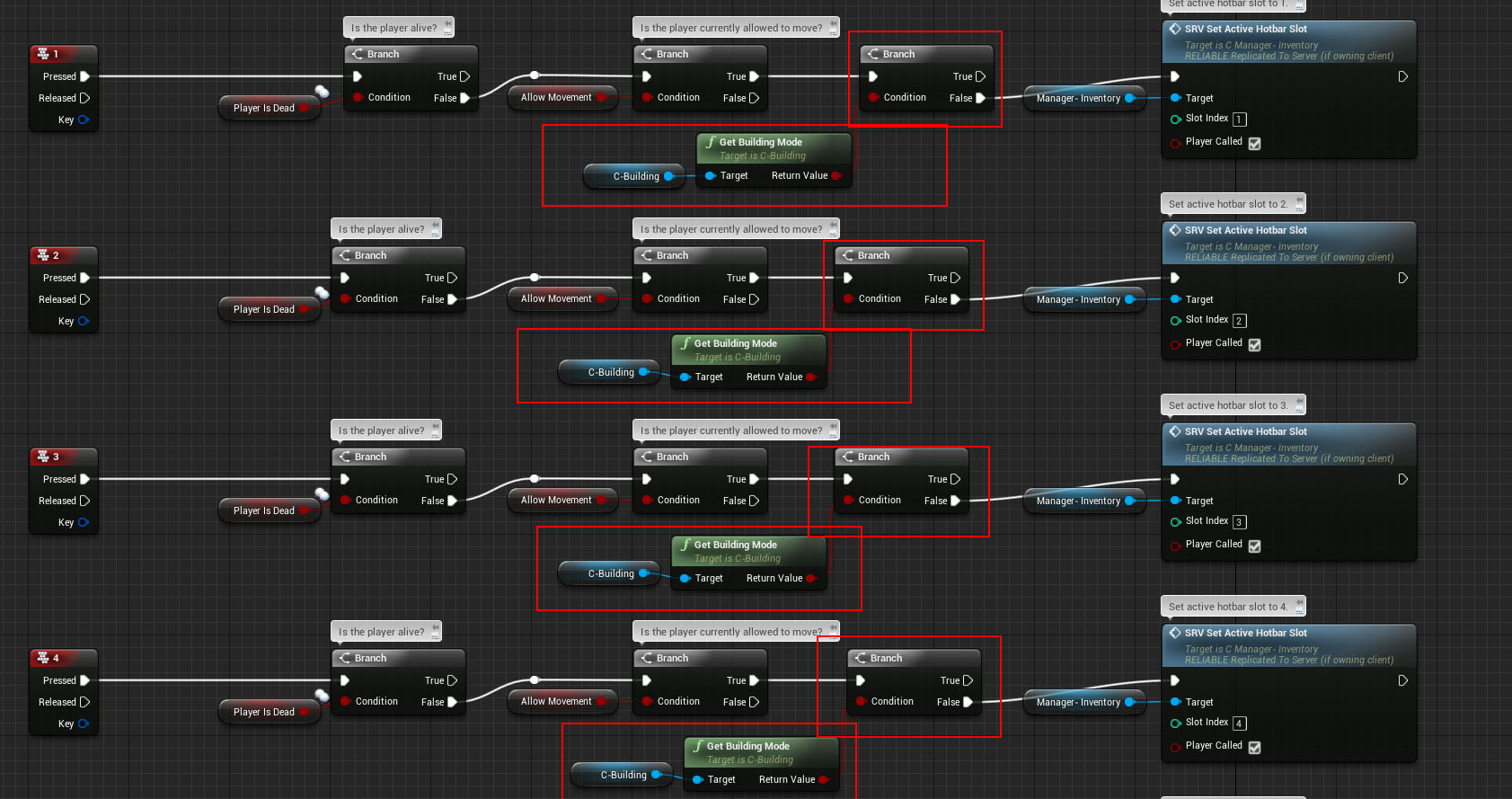
  • In the SurvivalController Blueprint, add the Branch checks shown below, to make sure we're not in Building mode when using the number keys.

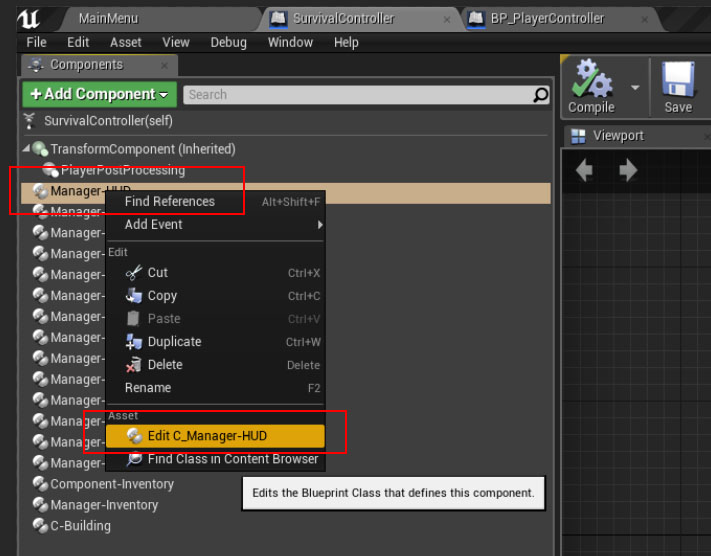
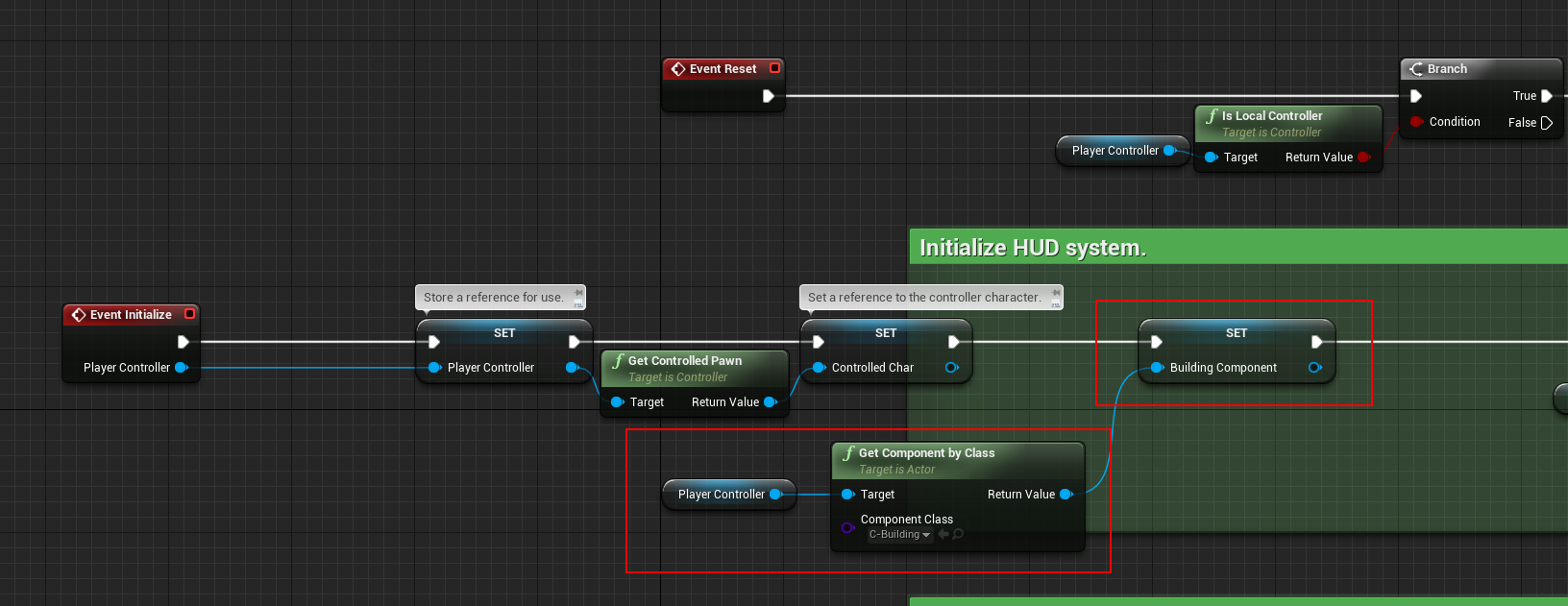
  • Open the Manager-HUD component Blueprint, add a reference to the Building Component as Shown below

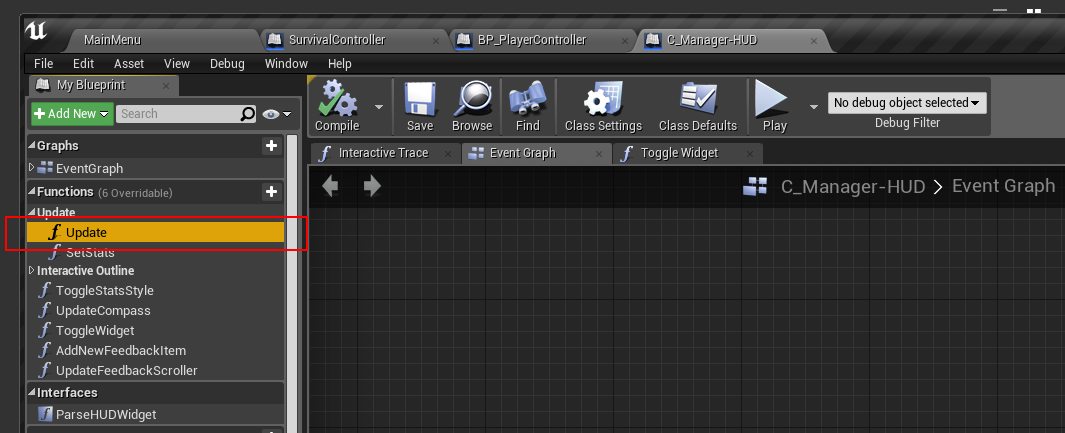
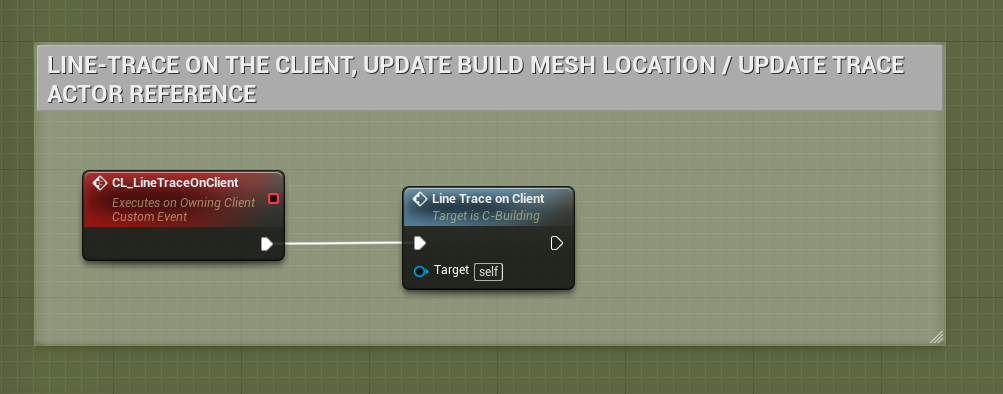
  • In the Manager-HUD Component, open the function "Update" and use the Reference you just created "Building Component" to call the function "CL Line Trace on Client".

That's it!

Step 2 of the Integration process can be found here:

http://eeldev.com/index.php/simple-build-system-integrating-multiplayer-survival-game-template-2/

Simple Build System Adding a new Building

· One min read
Developer

What you need before continuing:

  • You must have imported your building Mesh that you want to use

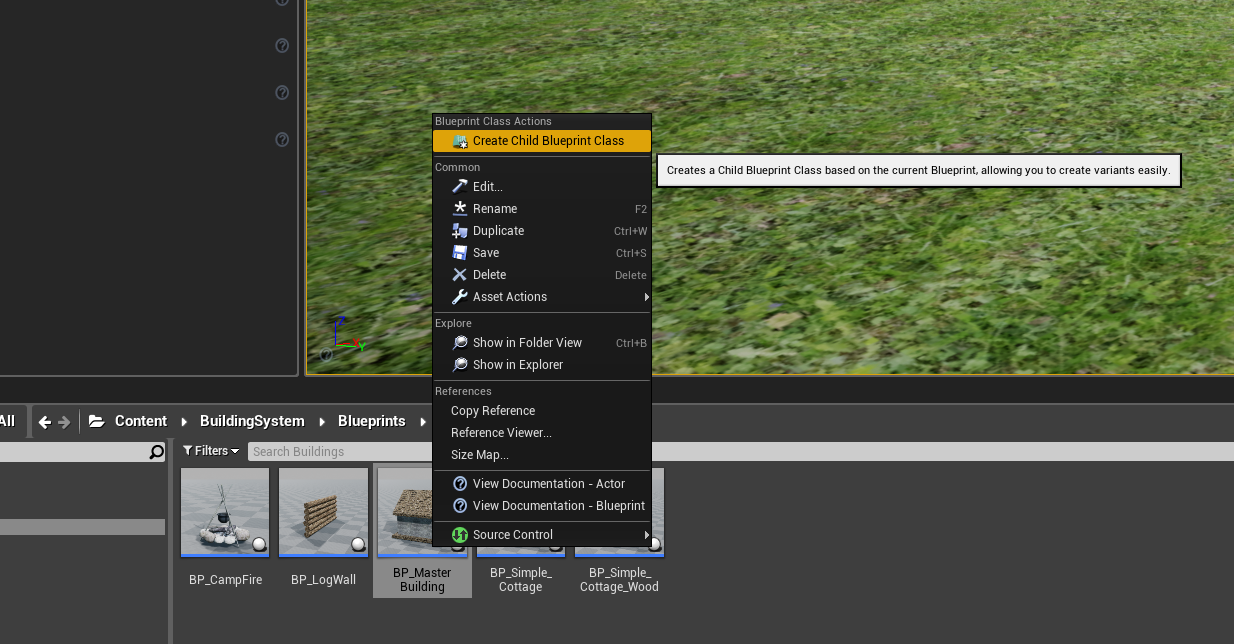
Make a Child Blueprint Class of "BP_Master_Building" and name it whatever you want.

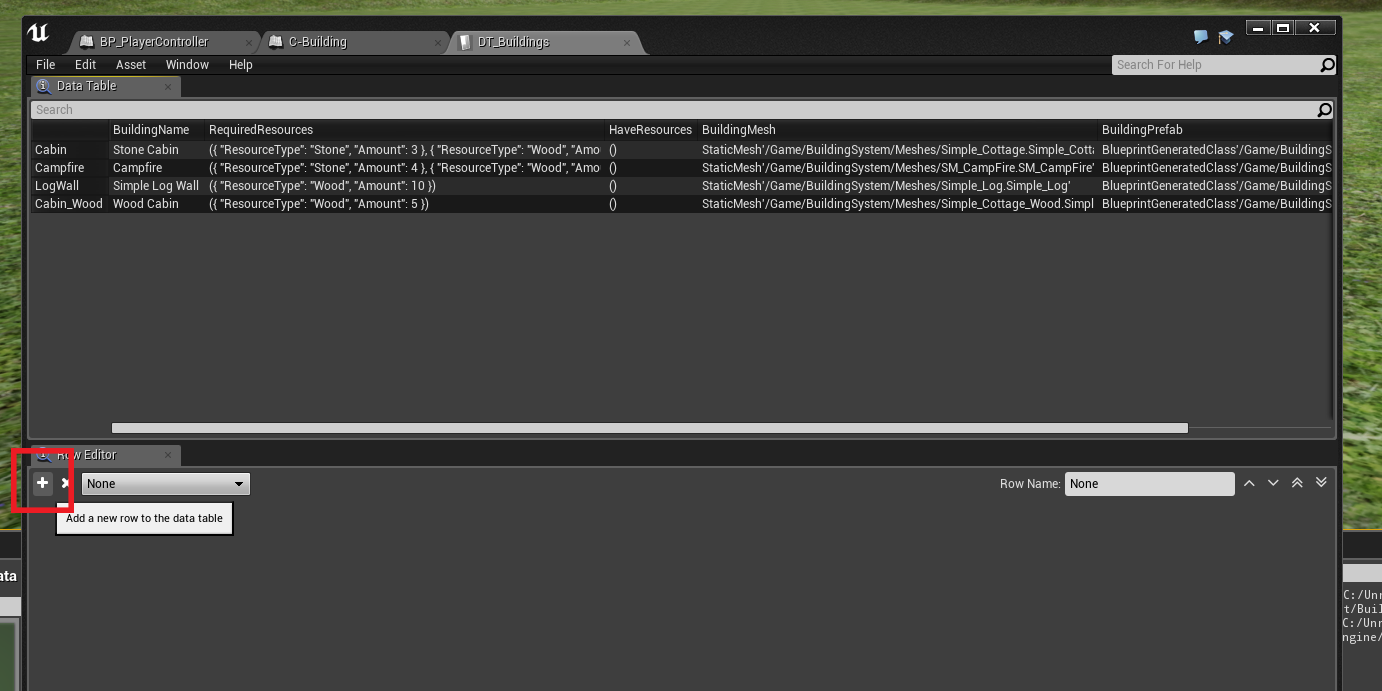
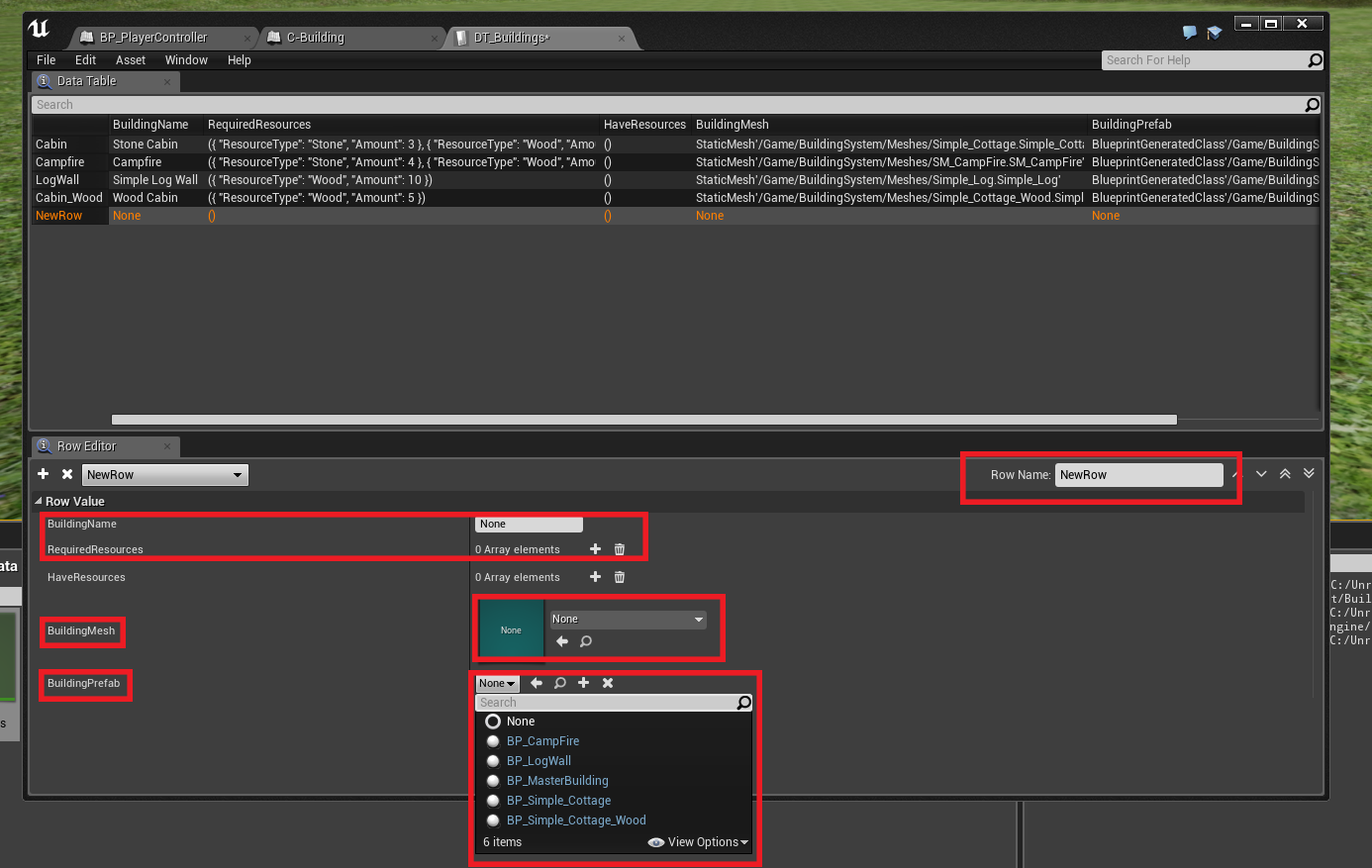
Add a new Row to the DataTable "DT_Buildings"

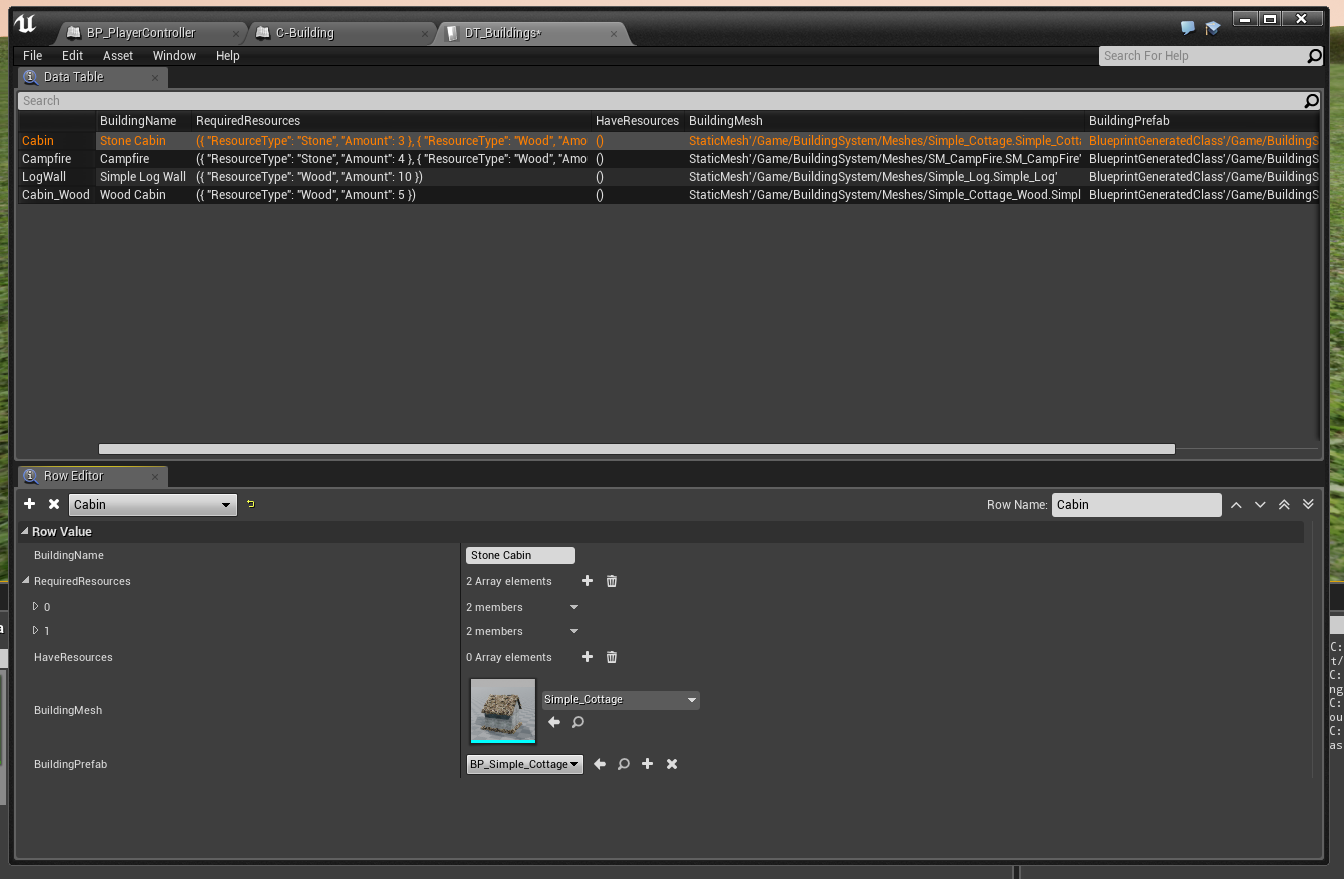
Fill in the information

It should look something like this when done:

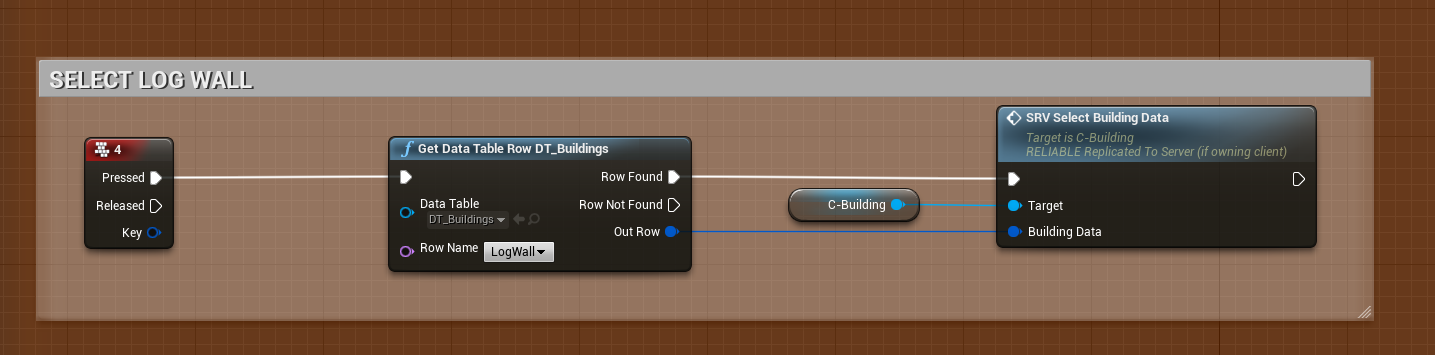
In the player controller, select the DataTable "Row Name".

That's it!

Simple Build System Settings

· 2 min read
Developer

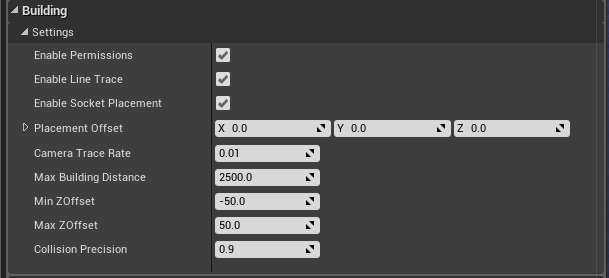
Simple Build system Settings Explained.

  • Enable Permissions If you want to enable the Permissions system, otherwise the system will not check Ownership of buildings
  • Placement Offset This is an offset used for building placement, when you spawn the build actor into the world it will inherit this offset, there are also in game functions to adjust the Z value of this offset (up and down)
  • Enable Socket Placement If you want to enable the sockets placement system
  • Trace Frequency This is how often the LineTrace will run, increase this value if, for whatever reason, you run into performance issues
  • Max Building Distance How far the player can build away from the Player's character (or view)
  • Min ZOffset Minimum Z offset you can lower the "Placement Offset" to.
  • Min ZOffset Maximum Z offset you can increase the "Placement Offset" to.
  • Enable Line Trace You can disable the built in LineTrace timer if you are using a different/your own line trace.
  • Collision Precision How precise do you want the collision check to be when placing down buildings (if colliding with another building) 1.0 = 1:1 scale of the building mesh (lower number is less precise)

If you disable "Enable Line Trace", be sure to call this event in your own Tick/Looping event/function. "CL_LineTraceOnClient"

Adding new resources to the Foliage System 1.2

· One min read
Developer

In the latest version of the Foliage System, I've made it super simple to add new Resources!

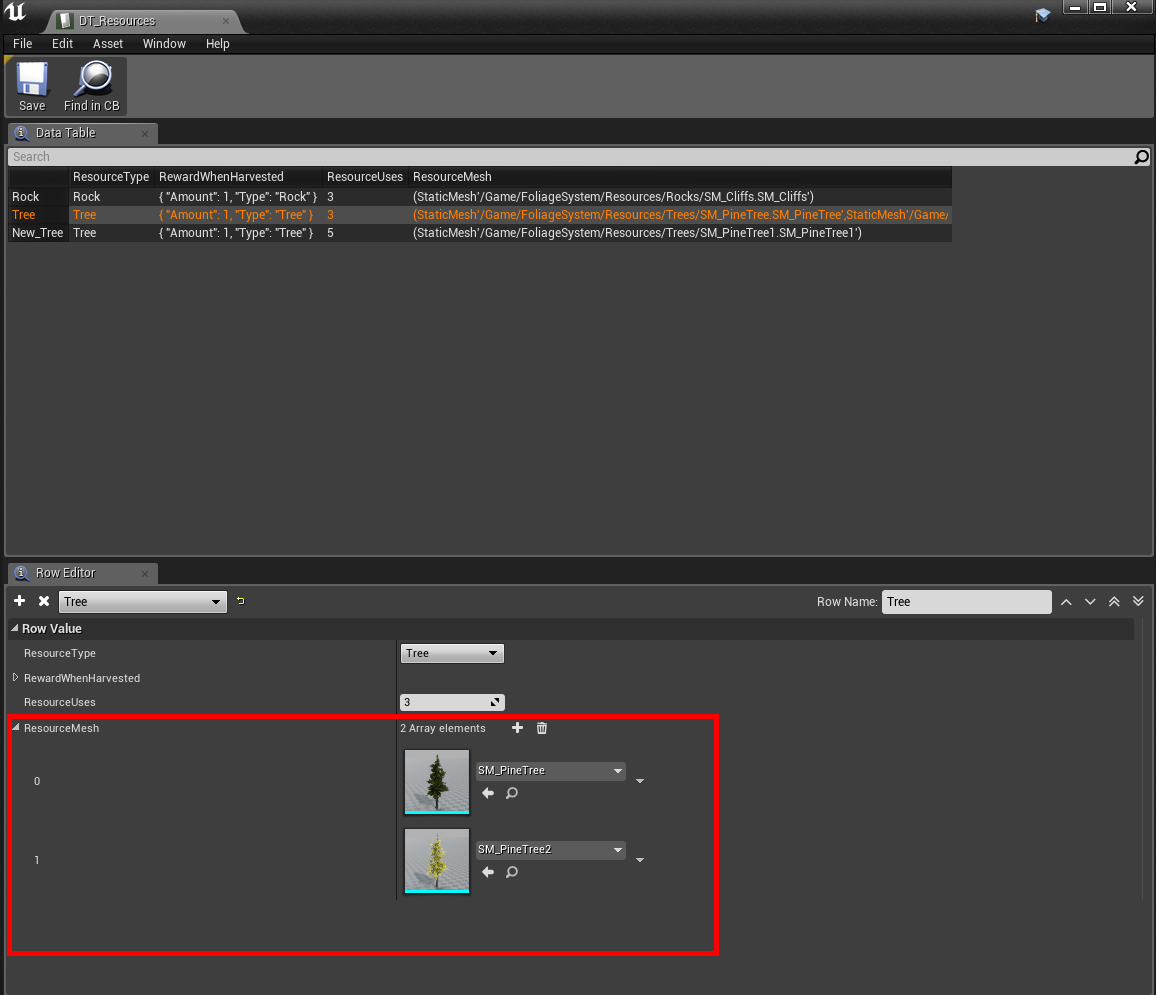
All you have to do now is open up DT_Resources data table and sets the mesh(es) for your resource, and you're done!

    You can now have an array of meshes for the same resource, if they have the same rewards & uses, you no longer have to have multiple entries and blueprints for each actor/resource!
Adding new resources to the Foliage System

· One min read
Developer

http://eeldev.com/index.php/adding-new-resources-to-the-foliage-system-1-2/          

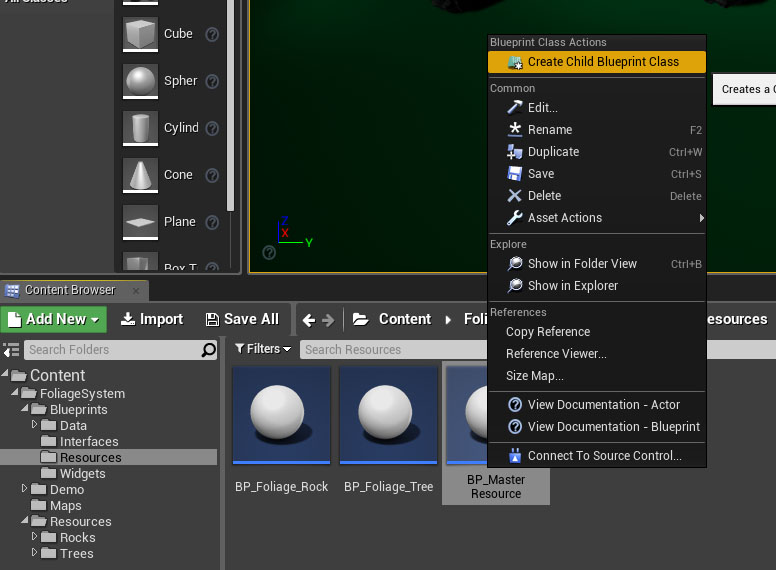
Create a Child Blueprint Class of the BP_MasterResource

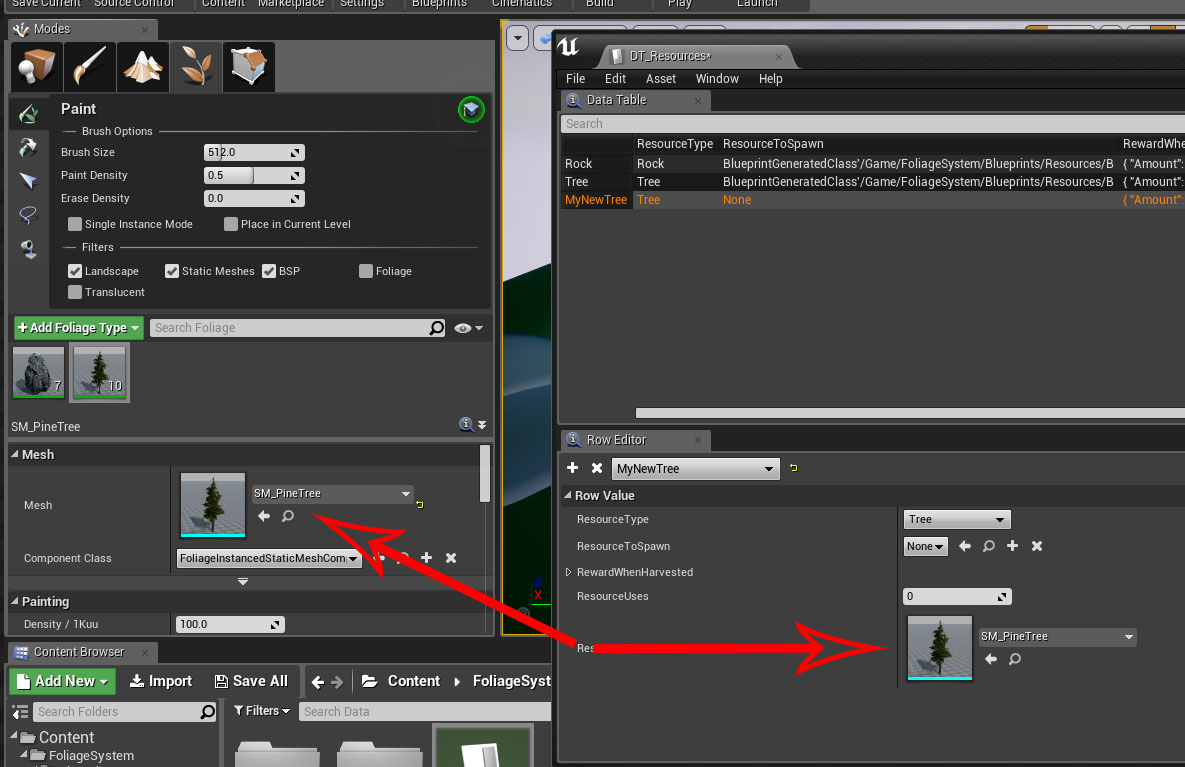
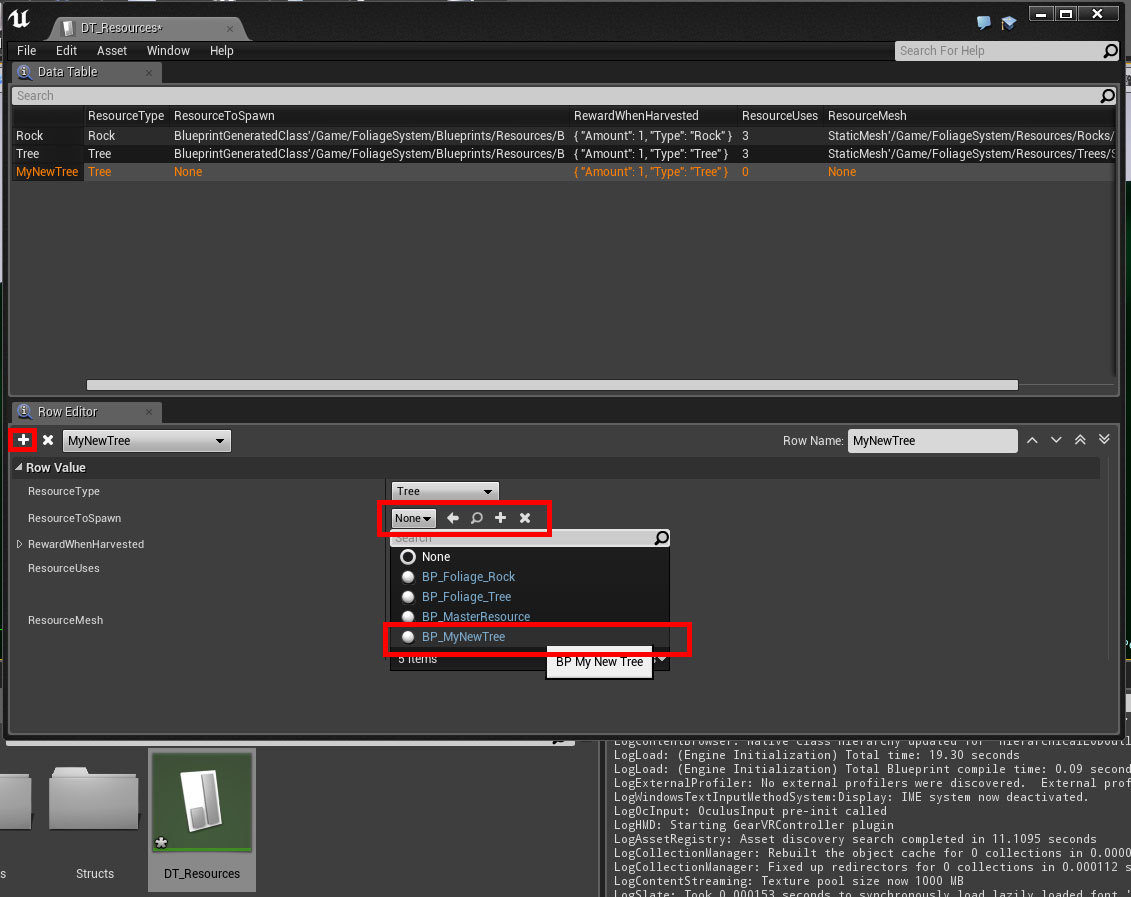
Open DT_Resources Data Table and add a New Row, set "ResourceToSpawn" to your new Child Blueprint Class that you just created.

Inside DT_Resources, make sure you set ResourceMesh to EXACTLY the same as your foliage mesh.

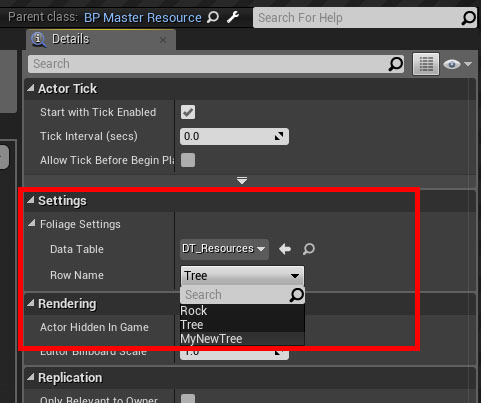
Open up your Child Blueprint Class, change it's FoliageSettings to "MyNewTree".

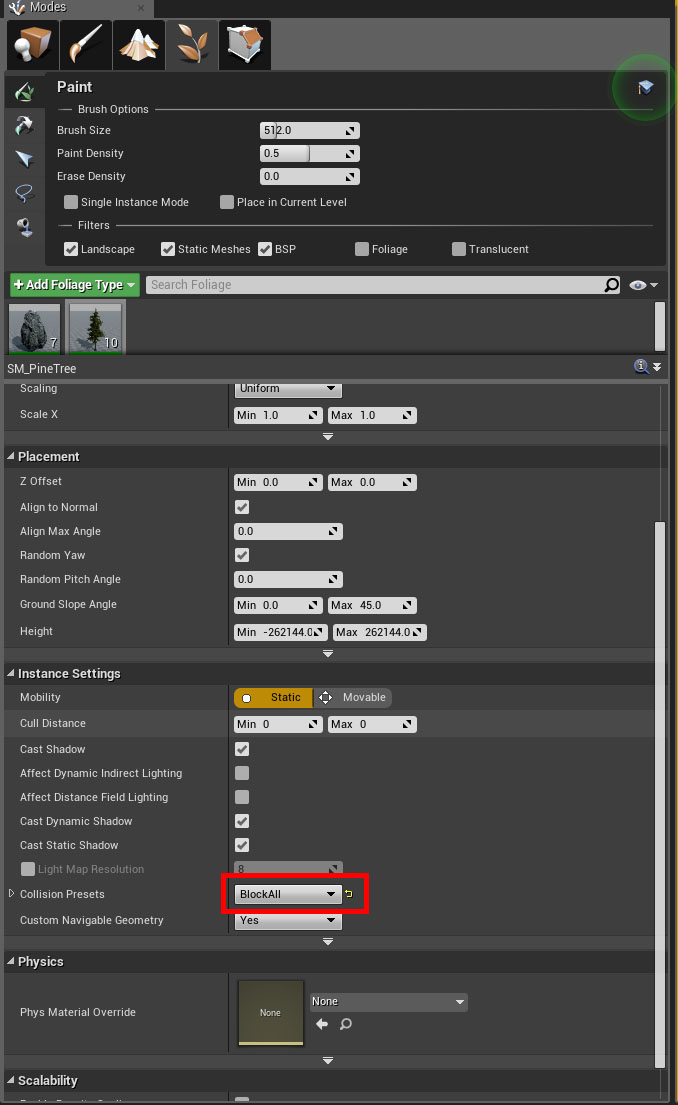
IMPORTANT! When painting your terrain with foliage, MAKE SURE that you set the foliage to Block All.

And that's it!

Integrating the Foliage System with the Survival Template (MSGT)

· 2 min read
Developer

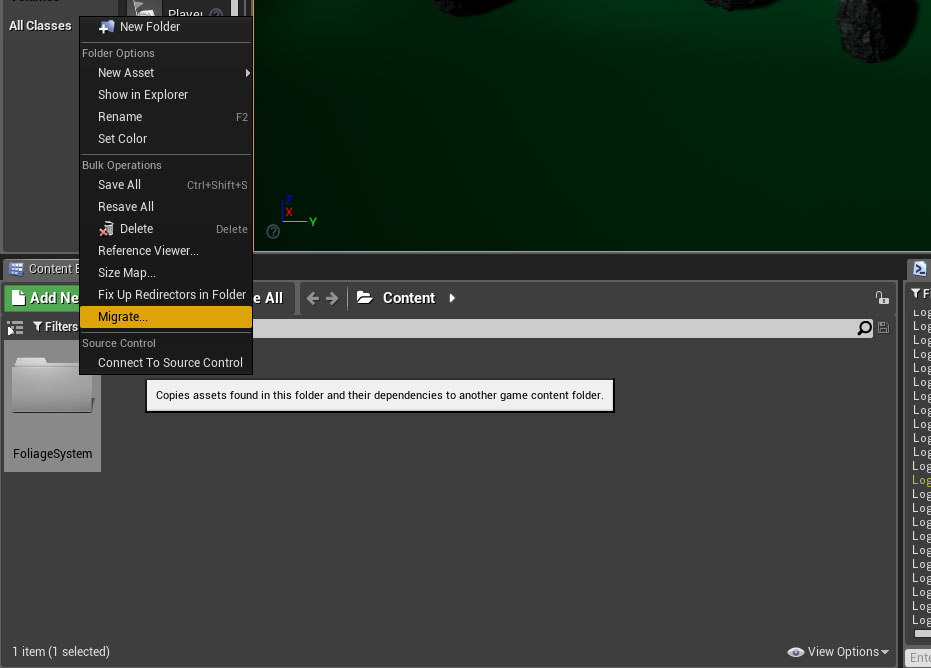
Begin by migrating the FoliageSystem to your MSGT Content folder


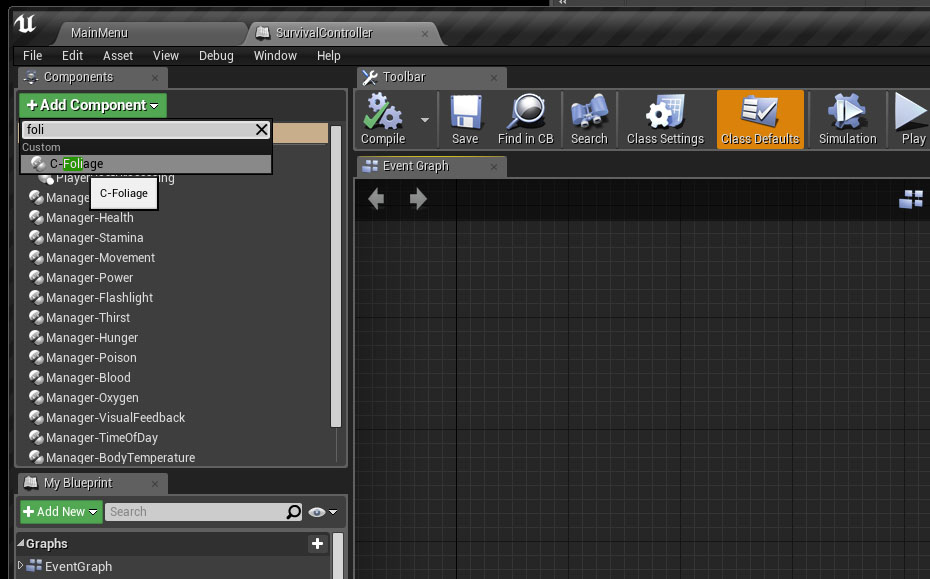
Add the C-Foliage component to your SurvivalController


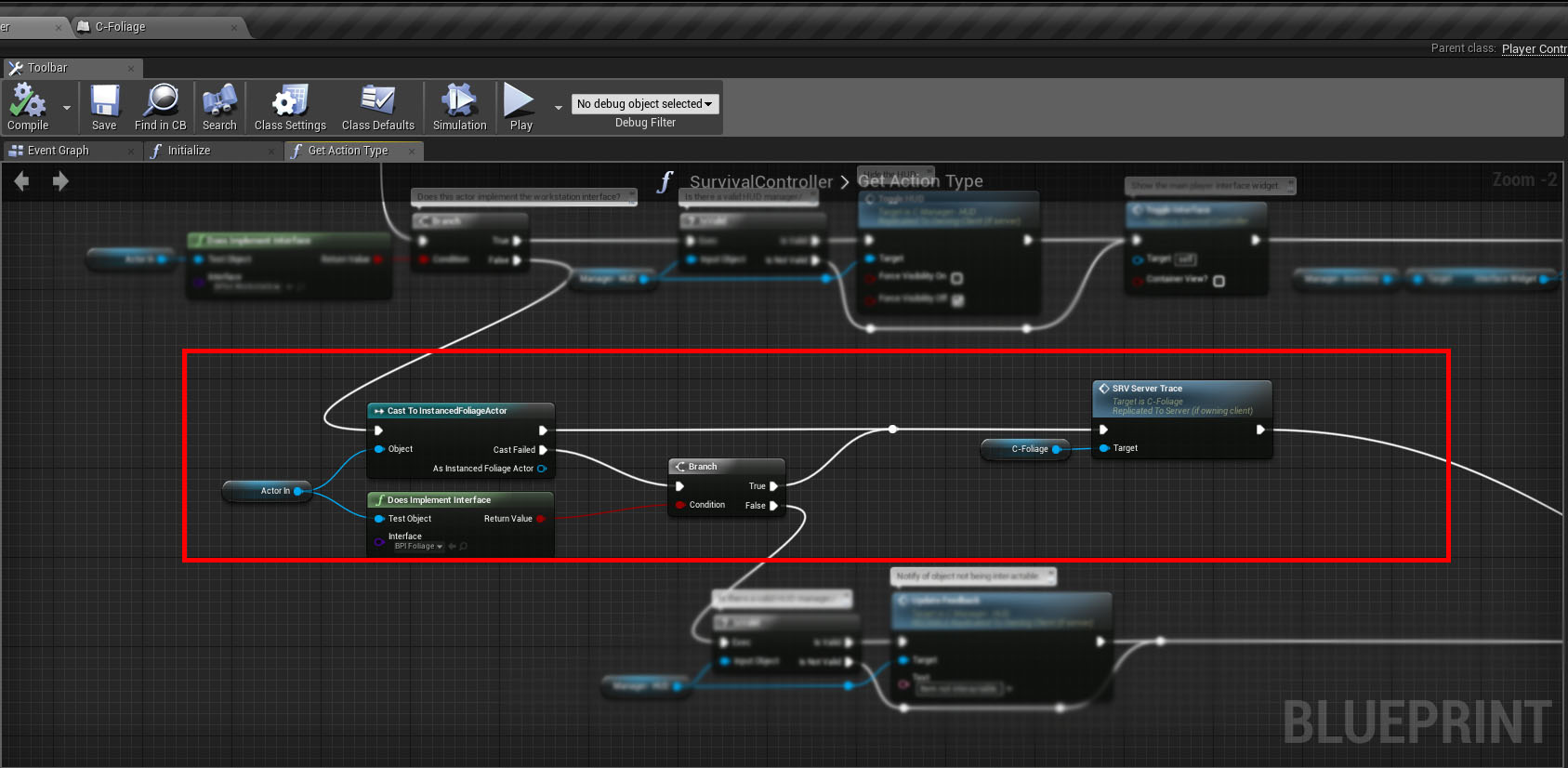
SurvivalController > GetActionType() function


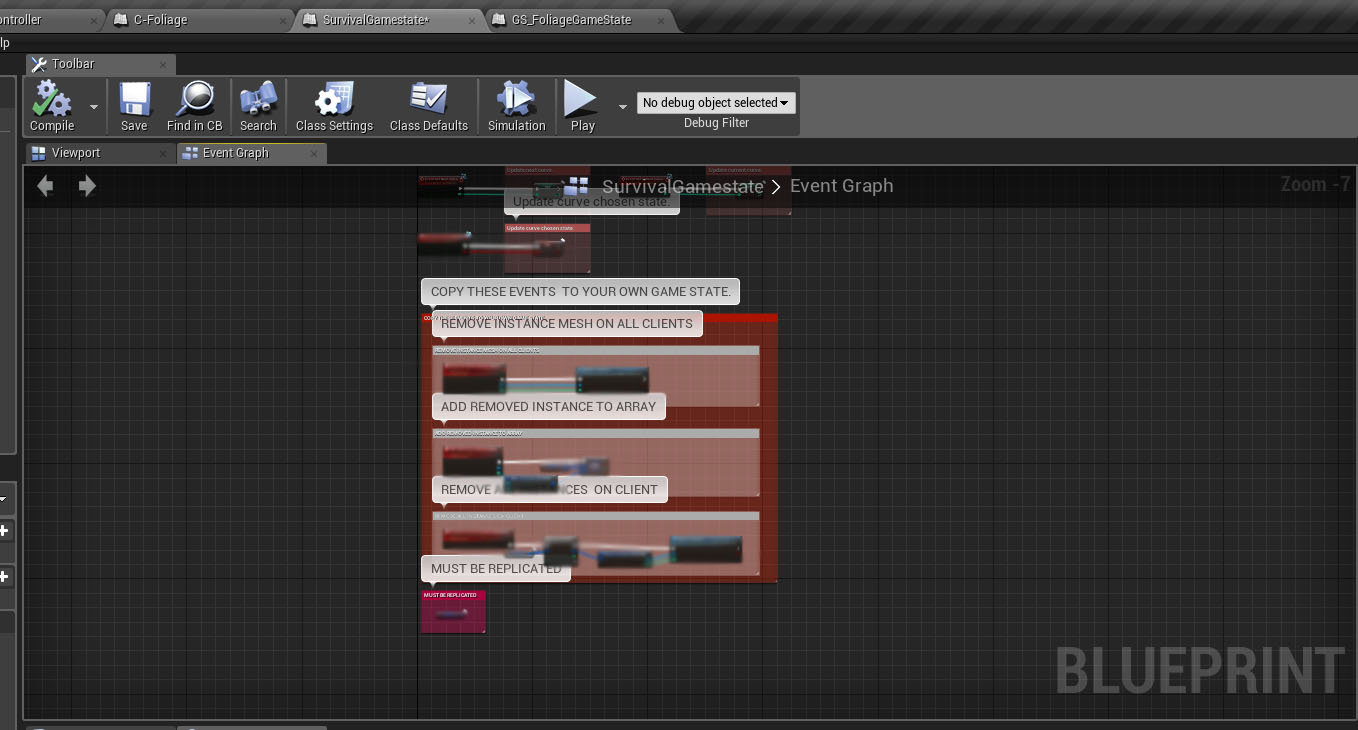
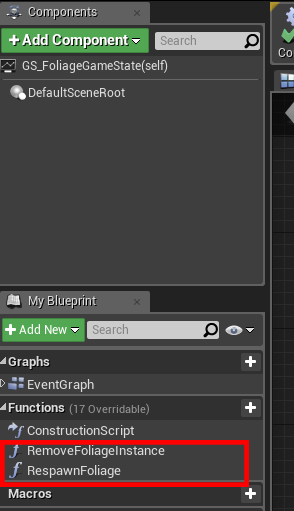
Copy all the Events and variables from GS_FoliageGameState Blueprint Paste them into the SurvivalGameState Blueprint.


You'll also have to re-create the 2 missing functions inside the SurvivalGameState


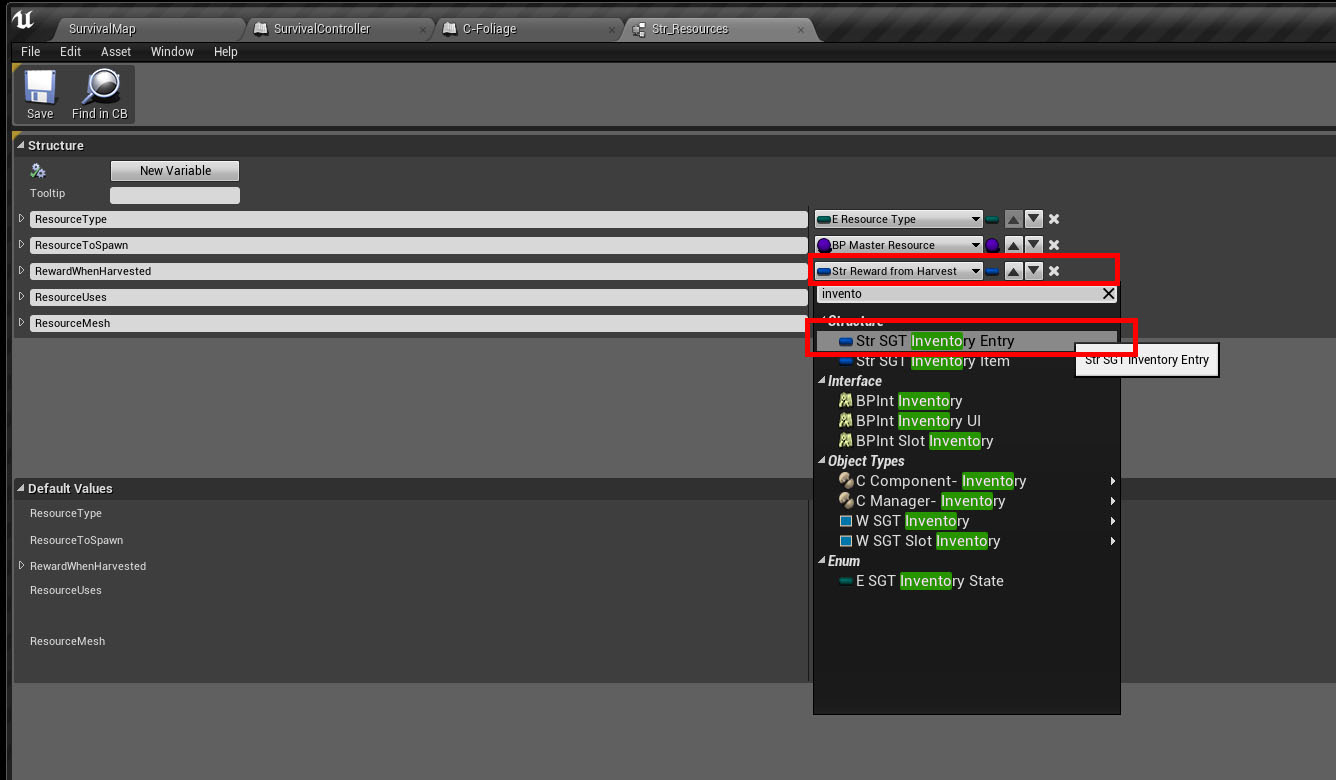
Open the Str_Resources struct file inside /FoliageSystem change the RewardWhenHarvested struct type to "Str_SGT_Inventory_Entry"


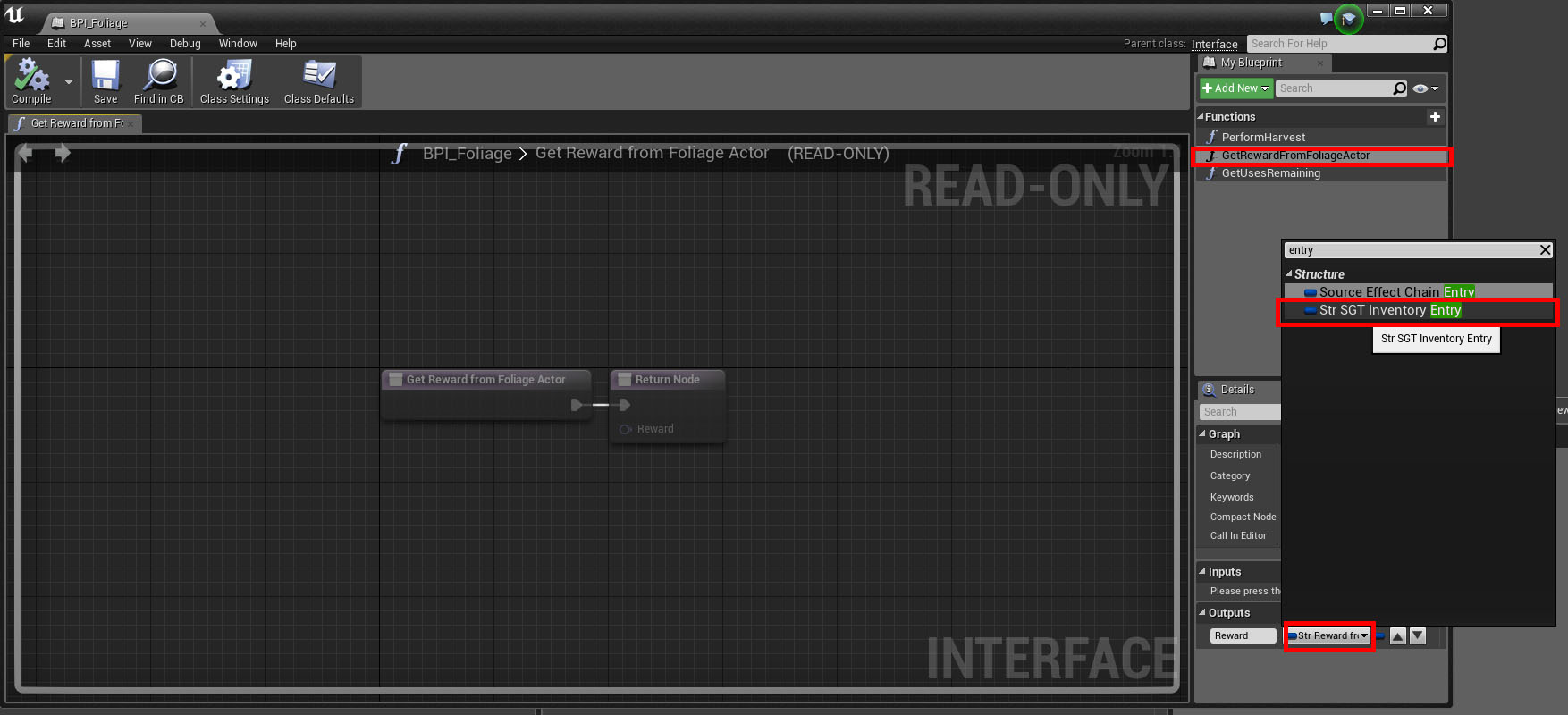
Change the Struct type inside BPI_Foliage, see image below.


Open the BP_MasterResource Blueprint, re-connect the missing link inside GetRewardFromFoliageActor() function.


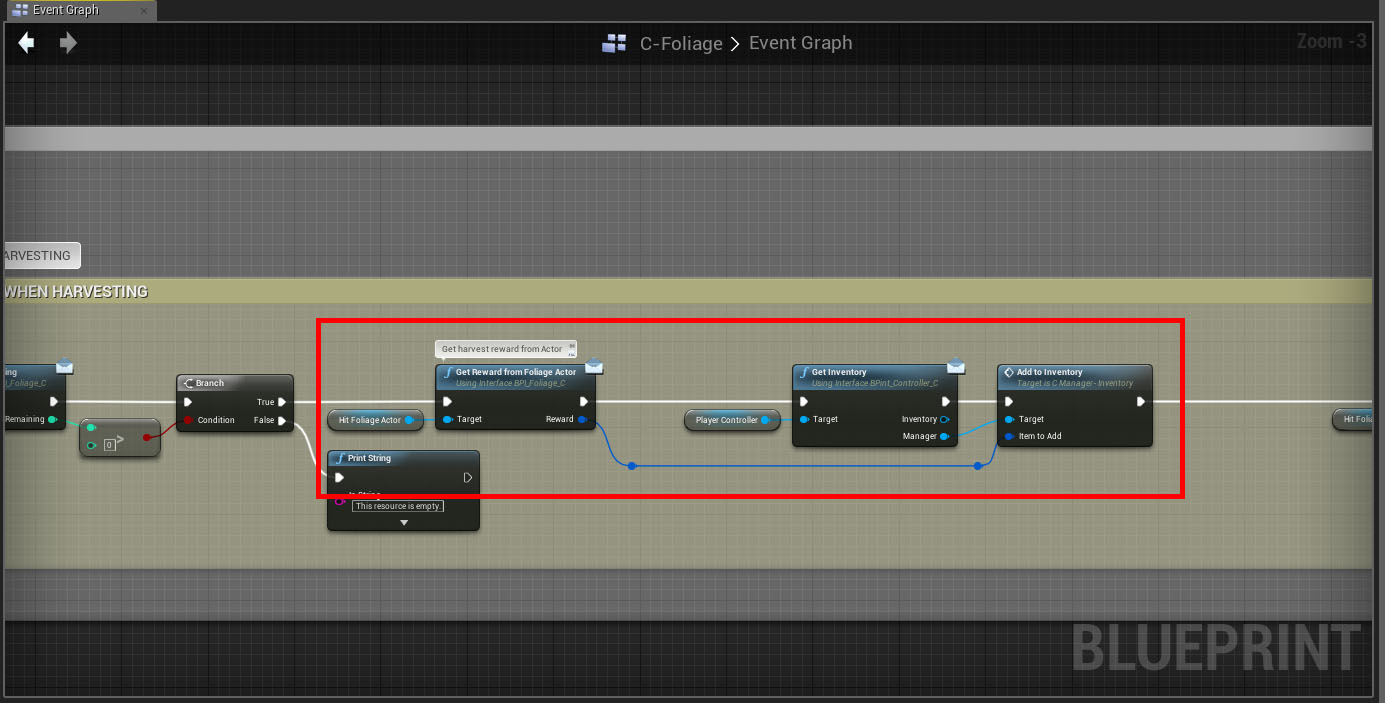
Replace the old Blueprint nodes with the ones you see below inside C-Foliage Component


Open the function ReplaceInstanceWithActor inside C-Foliage Component replace GS_FoliageGameState with SurvivalGameState.


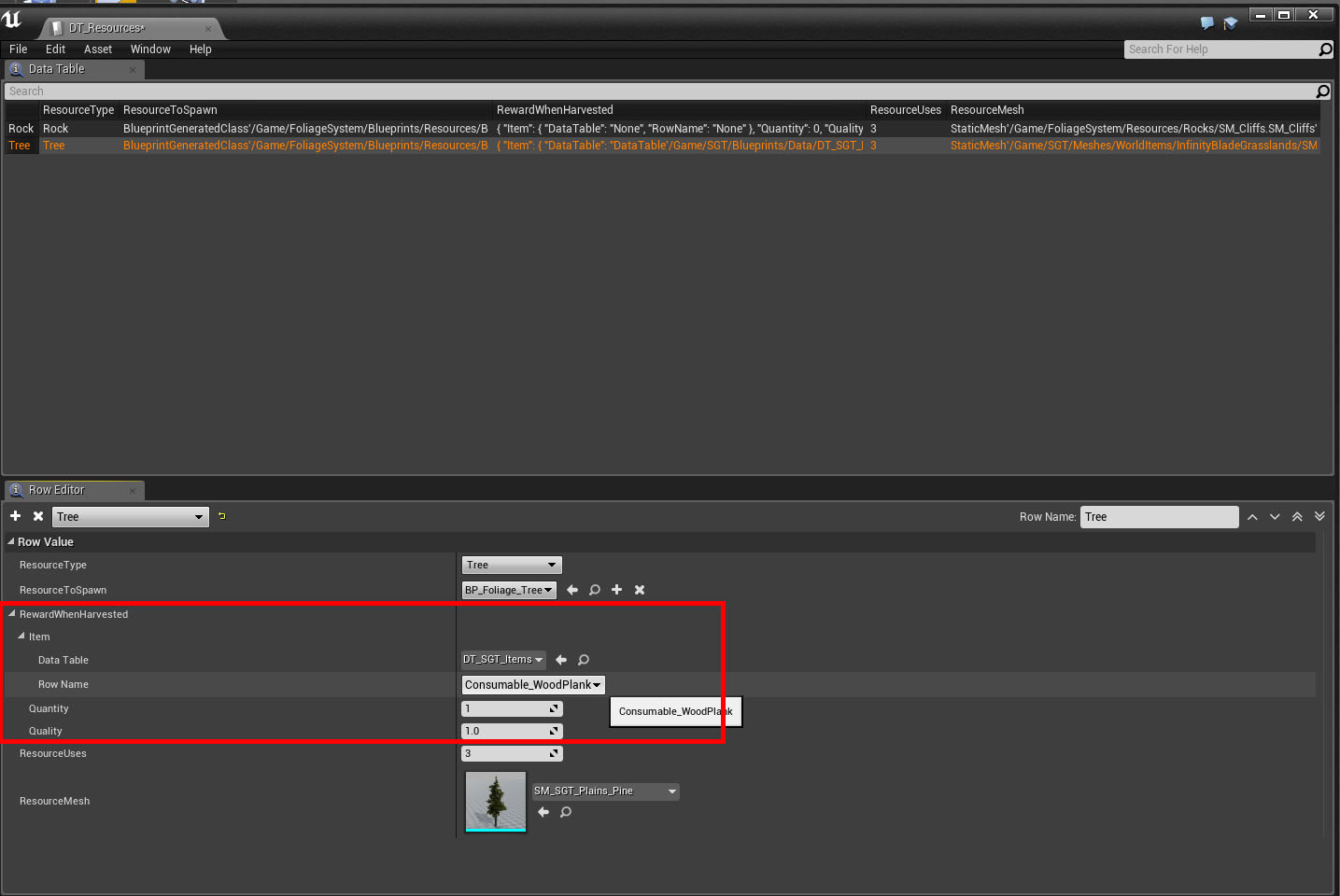
Edit DT_Resources, change the Reward settings to whatever you want this Tree to reward the player with.


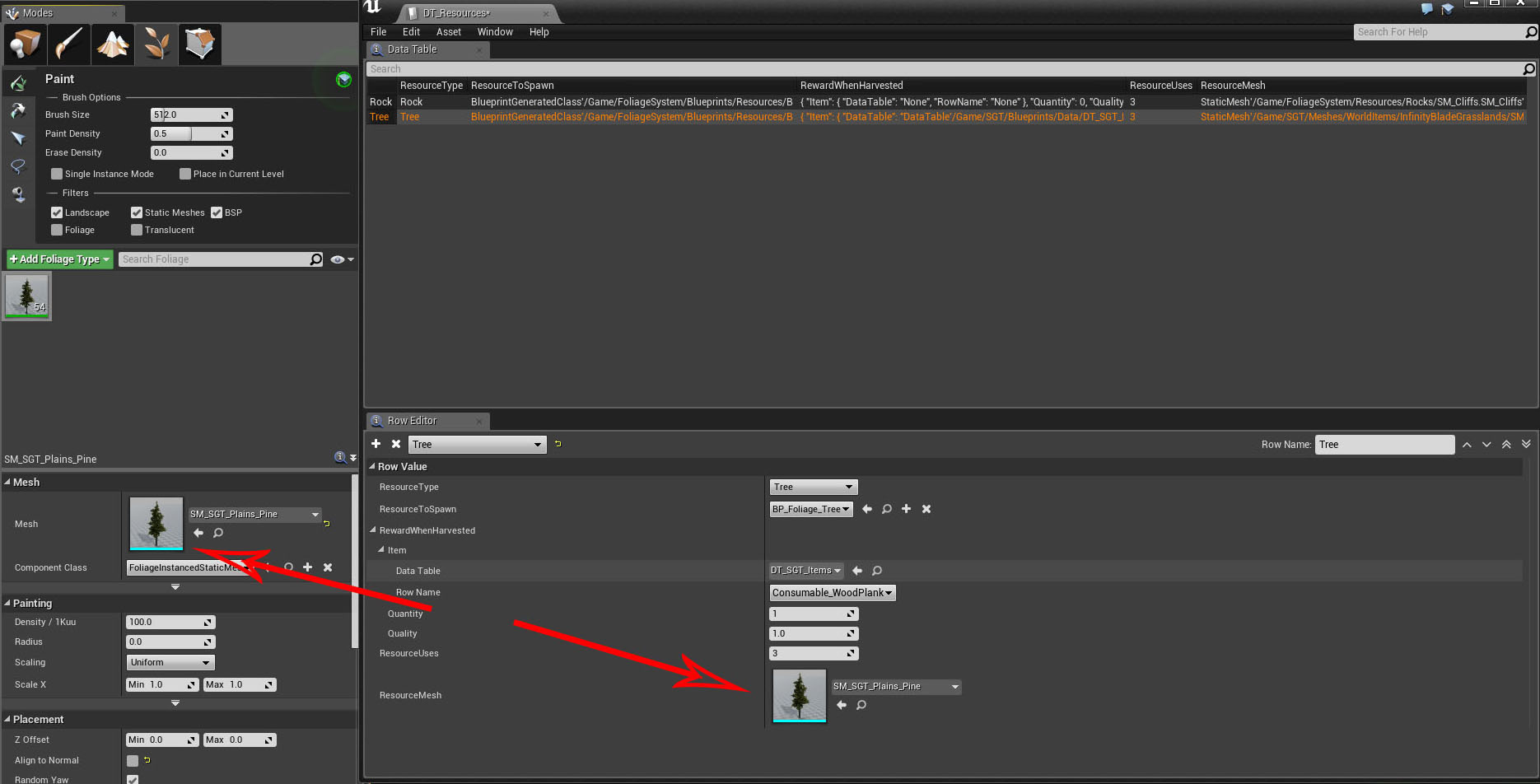
Make sure the ResourceMesh is EXACTLY the same as the Mesh you are "planting" with your Foliage Placement tool.


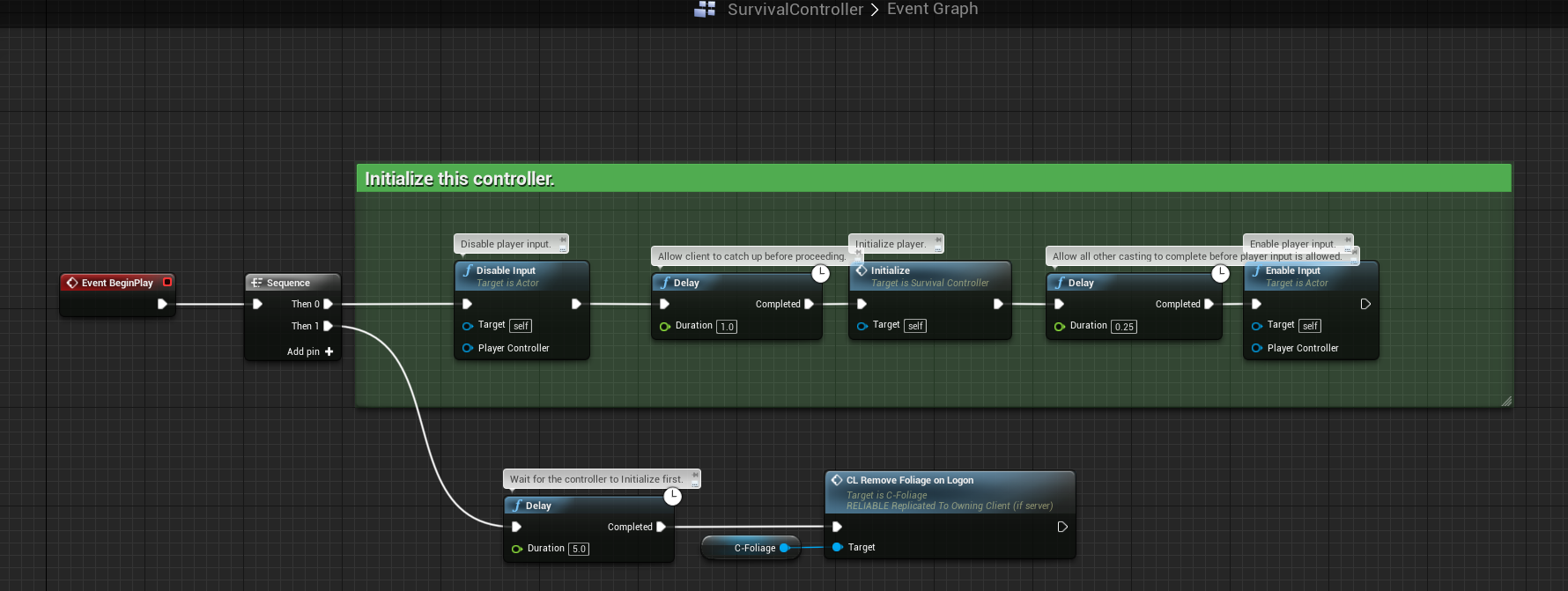
SurvivalController > BeginPlay, it should look like this: